How to cancel a team event in the iPhone app
Coaches and admins can cancel a team event from the iPhone app. You can choose whether to send an update to the players, parents, and coaches on the event.

Coaches and admins can cancel a team event from the iPhone app. You can choose whether to send an update to the players, parents, and coaches on the event.
Open the team event
Open The Futures App on your iPhone using your coach or admin account.
Go to Schedule.
Select the team event you want to cancel. Check the event name, team, date, and time.
Open the ⋯ menu.
Select Cancel event.
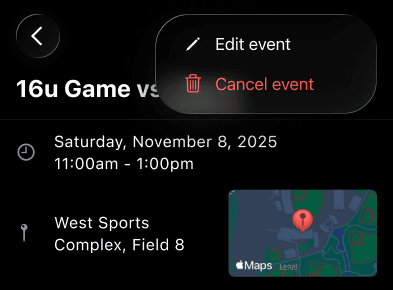
iPhone team-event menu with Cancel event.
Choose whether to notify attendees
Review the cancellation prompt.
Select Send to cancel and send email and push updates to the players, parents, and coaches on the event.
Or select Don’t send to cancel without those notifications.
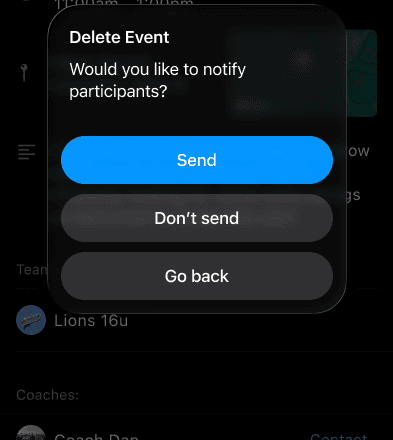
The event notification prompt offers Send, Don’t send, and Go back.
Tip: Check the event details carefully before canceling. This guide covers a team schedule event, such as a practice or game—not a paid lesson booking.
If Cancel event isn’t available
Check that you’re signed in with your coach or admin account. If you still can’t cancel the event, ask your organization’s admin for help.
Note: These steps describe cancellation in the iPhone app. Creating new team events is an admin task.