How to cancel the remaining payments on a payment plan
Cancel a registration or invoice payment plan to stop its remaining scheduled payments. This is separate from refunding money already collected or changing a customer’s access to a program.

Cancel a registration or invoice payment plan to stop its remaining scheduled payments. This is separate from refunding money already collected or changing a customer’s access to a program.
Check the plan before canceling
Open the registration payment plan or invoice you need to stop.
Check the customer, program, payments already collected, and remaining schedule.
Make sure you intend to stop the rest of the plan, not change just one installment.
Cancel the plan
On an invoice, open Actions and select Cancel Payment Plan.
Review the confirmation carefully. This action stops the plan’s remaining scheduled payments.
Complete the confirmation only when you are sure.
Reopen the payment schedule and verify that the remaining payments will no longer be collected.
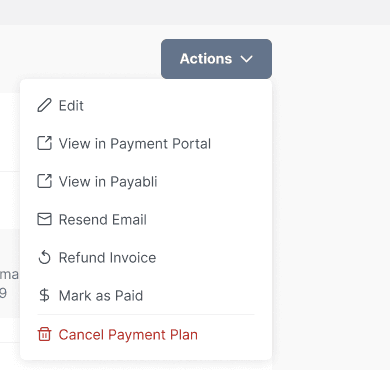
Invoice Actions menu with Cancel Payment Plan.
What this does not do
Canceling future payments is not the same as refunding a completed charge. Do not use this action as a substitute for checking whether a registration, membership, or program access also needs a separate change.
If you only need to adjust one unpaid amount, review the scheduled-payment change options instead of canceling the whole plan.