How to change the payment method for an active payment plan
You can update the payment method used by an active installment plan from your portal’s Billing page. Select the plan you want to change, then choose a saved method or add a new one.
You can update the payment method used by an active installment plan from your portal’s Billing page. Select the plan you want to change, then choose a saved method or add a new one.
Find the payment plan
Open your club’s portal and sign in.
Select your profile image or initials in the top-right corner.
Select Billing.
Find the plan under Active Plans. Check the program name so you update the right plan.
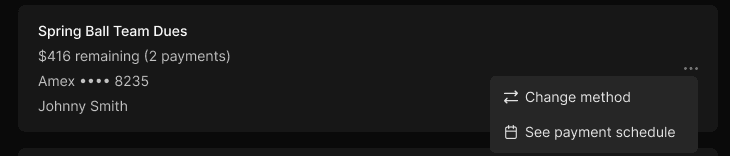
Open the active plan’s menu and select Change method.
Change the plan’s payment method
Select the ⋯ menu on the plan card.
Choose the action for updating the plan’s payment method.
Select an existing saved method or add a new one.
Follow the on-screen prompts to finish the change.
Check the plan card to confirm that it shows the payment method you selected.
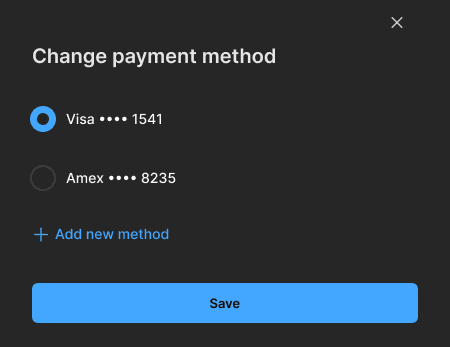
Choose a saved method or add a new one, then save.
Adding a card is a separate step
You can add a saved method under Payment Methods using + Add new method. To assign it to an active plan, open that plan’s menu and select the method there.
Tip: Review each plan you want to change. Don’t assume that saving a new card updates every active plan. If a balance is already overdue, use Pay Overdue Balance to review and pay that balance separately.