How to collect custom information during registration
Add custom fields to collect information your club needs during registration. Reuse a field on other programs while keeping each program’s answers separate.

Add custom fields to collect information your club needs during registration. Reuse a field on other programs while keeping each program’s answers separate.
Create a question
Open the registration’s information-field settings in the admin dashboard. In creation, find Custom Fields in step 5.
Select Add new to open Create Field.
Give the field a clear name.
Choose its type: text, number, date, single-select, or multi-select.
For a select field, enter the available choices and finish creating the field.

Use the checkbox to include a field and its Required toggle to make an answer mandatory. Both controls are shown here in the off state.
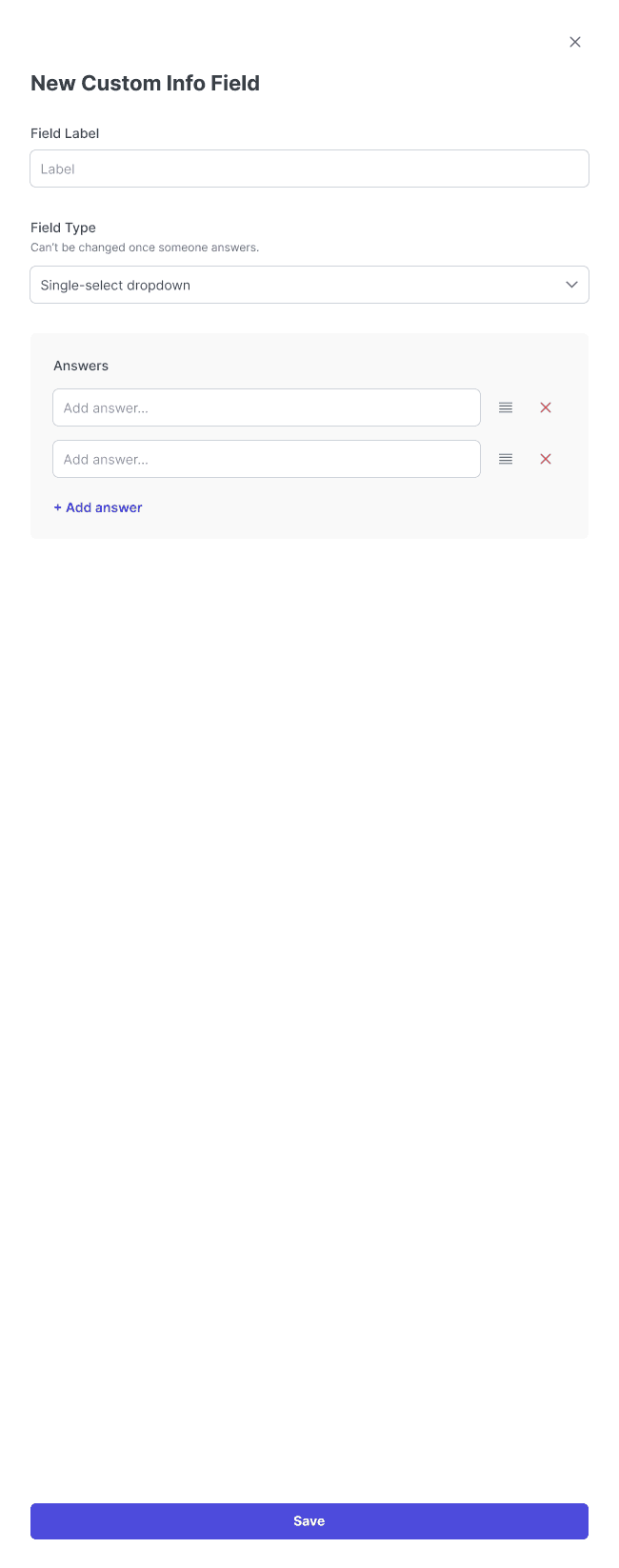
New single-select field drawer, showing the label, answer inputs, and Save control.
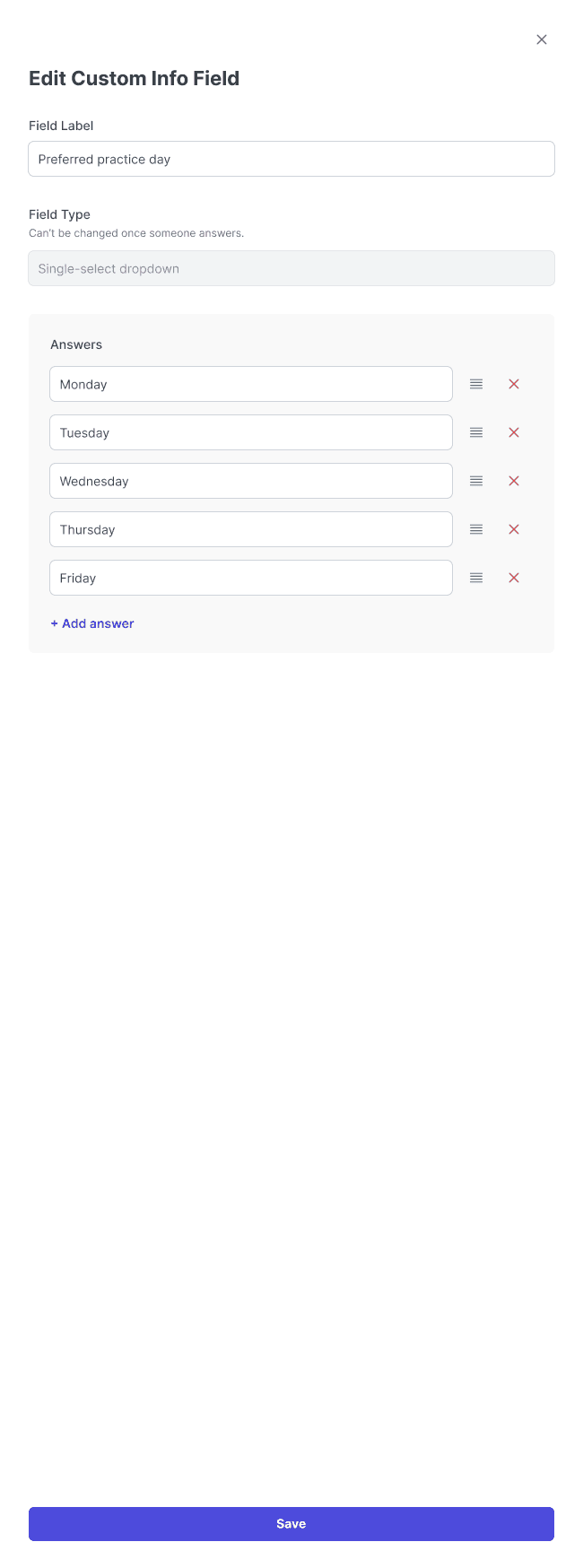
Edit the field label and answer choices, then select Save.
Include it in the registration
Enable the field for this registration.
Mark it required only if customers must answer it to continue.
Review the other enabled questions and finish the setup flow.
Open the registration in the portal and test the question and required-field message before sharing the link.
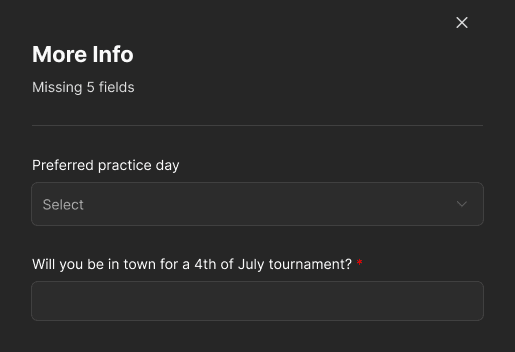
The portal’s More Info panel shows missing information and marks the required question with an asterisk. Complete the required information before continuing.
Reuse the question, not the answer
A field you create can be reused on another registration or membership. Answers belong to the specific program, rather than becoming a permanent player-profile answer. Review answers for the correct program when preparing a participant export.
Tip: Ask only for information you need for this program. Keep question names short and make the available choices easy to understand.