How to filter and export Booked Sessions
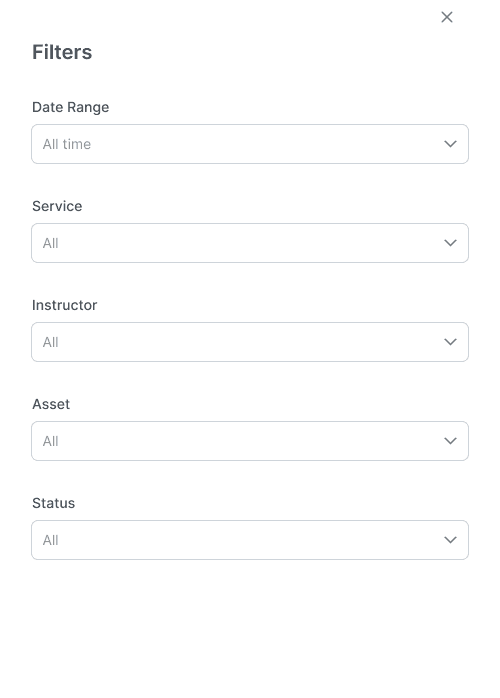
Filter Booked Sessions by date, service, instructor, asset, or status. Review the summary cards and export a CSV of the bookings you selected.
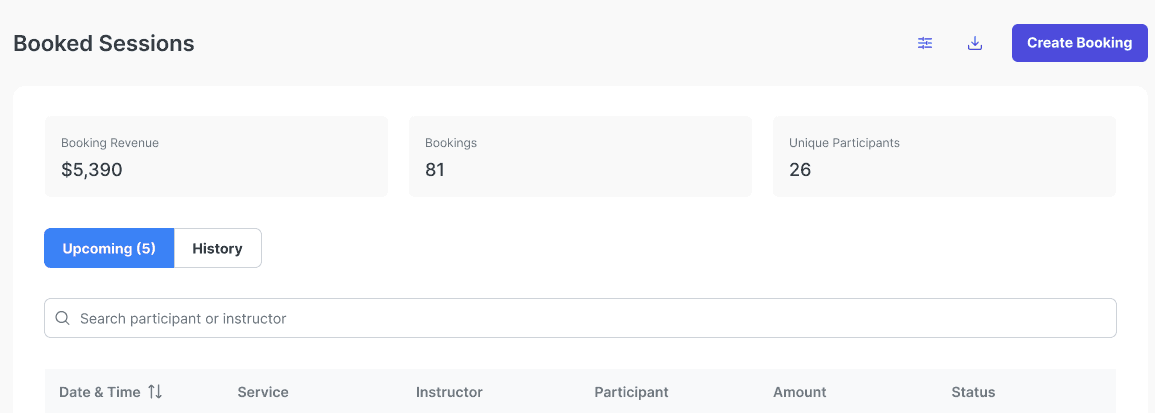
Use the Booked Sessions log in The Futures App to find bookings and export a filtered CSV. The summary cards update with your filters.
Before you start
You need access to Booked Sessions in your organization’s admin dashboard.
How do you open Booked Sessions?
Expand Booking in the admin dashboard.
Select Booked Sessions.
Choose Upcoming for future sessions or History for past sessions.
Search by participant or instructor name if you need a specific person.
How do you filter bookings?
Select Filter.
Set the session date range.
Set any instructor, service, asset, or status filters you need.
Apply the filters.
Check the results.
Review the Booking Revenue, Bookings, and Unique Participants summary cards.
How do you export the filtered list?
Check the date range, active filters, and Upcoming or History view.
Select the CSV export control.
Open the downloaded file.
Check that the file contains the sessions you intended to include.
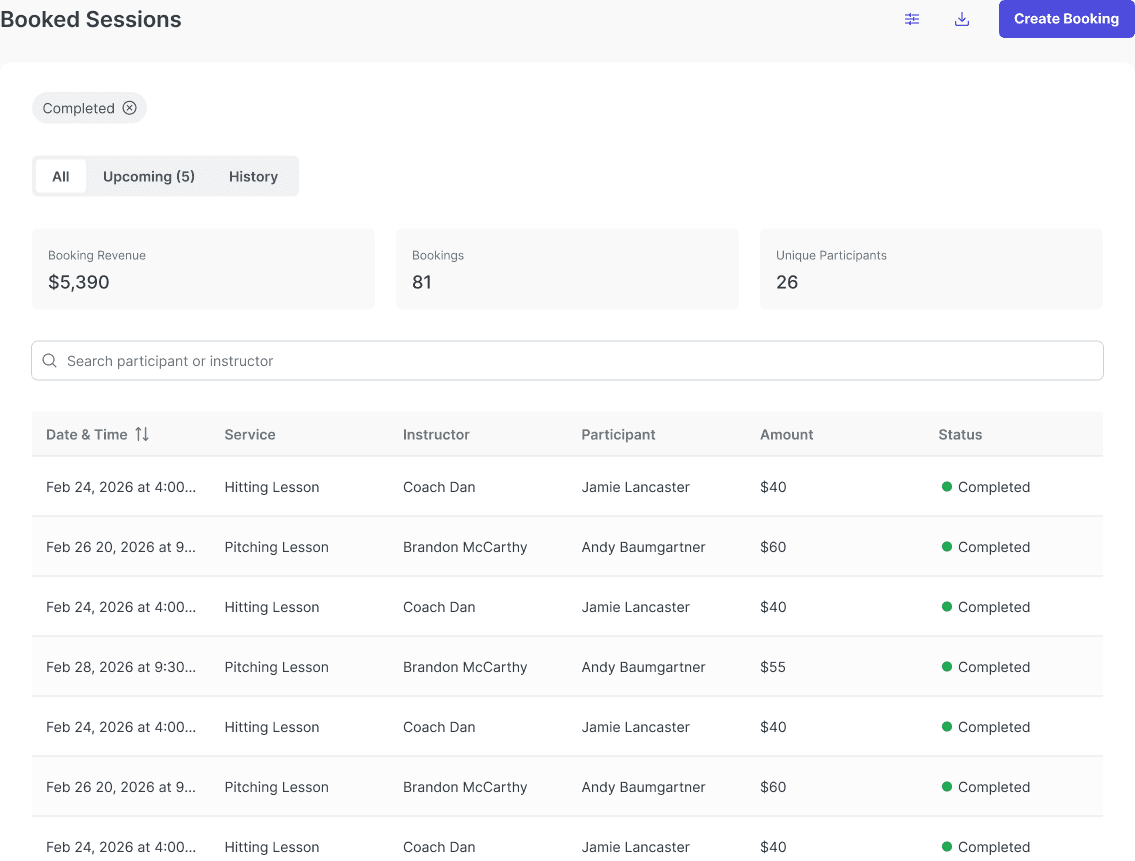
Platform: Use the Booked Sessions log on the web in the admin dashboard.
Common questions
Do the summary cards reflect your filters?
Yes. Booking Revenue, Bookings, and Unique Participants reflect the current filters.
Does the log calculate staff pay or send payouts?
No. It supports reporting and payroll preparation, but it does not calculate staff pay or send payouts.
Is Booking Revenue the amount deposited in your bank?
No. Booking Revenue is not a bank-deposit total. Check your organization’s payment and refund records separately when reconciling money.