How to find and manage notifications in the iPhone app
Find booking and payment alerts in the iPhone app’s Notification Center. Tap an alert to open the related details, and check your iPhone’s permissions if push alerts are not appearing.
Find booking and payment alerts in the iPhone app’s Notification Center. Tap an alert to open the related details, and check your iPhone’s permissions if push alerts are not appearing.
Find an alert
Open Notification Center in the iPhone app.
Find the booking, invoice, or payment alert you need.
Tap it to open the relevant booking details, invoice, or billing page.
Check the details before taking action, especially if the booking time or payment status has changed since the alert arrived.
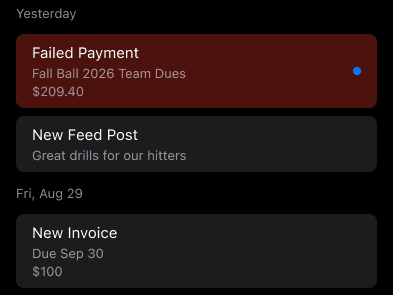
Examples of failed-payment and invoice alerts in the app’s notification list.

The bell opens the iPhone app’s notification list; the gear opens settings.
Check iPhone push permissions
Open your iPhone’s Settings.
Open Notifications and select the app.
Check Allow Notifications and choose how you want alerts displayed.
Return to the app and review Notification Center for recent alerts.
Push alerts and email are different
Push alerts depend on your device’s permissions. Booking and payment emails continue alongside push notifications, so check the email account used with your club too.
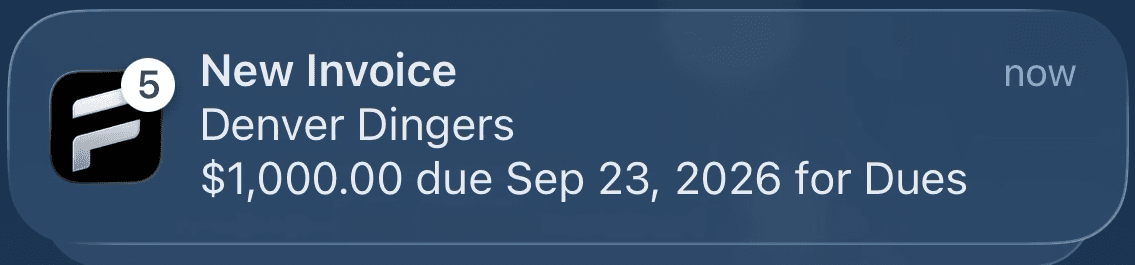
An invoice push alert on iPhone. Tap the alert to open its details.
If an alert opens a sign-in screen, use your own account. If the destination does not match the alert or an important update is missing, contact your club or select Request Help.