How to manage billing and payment methods
Open Billing in your club’s portal to pay overdue balances, review active plans, and change or add payment methods. Check the correct account first.
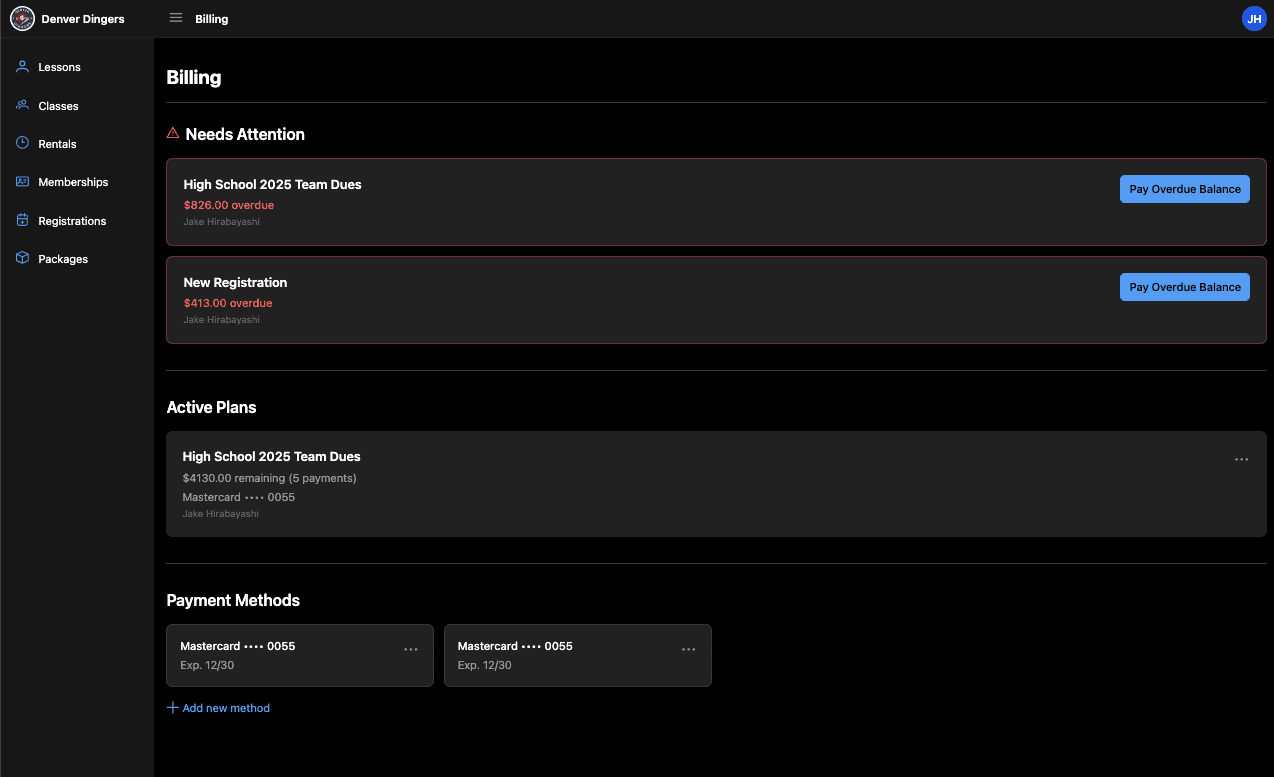
Open Billing in The Futures App portal to review overdue balances, active payment plans, and saved payment methods. A plan’s payment method can be changed from that plan’s menu.
Before you start
Sign in to the account that owns the balance or payment plan. Switching to a player profile does not by itself grant access to another person’s billing.
How do you open Billing?
Sign in to your club’s portal.
Open your account icon in the top-right corner.
Select Billing.
How do you pay an overdue balance?
Find the item under Needs Attention.
Select Pay Overdue Balance.
Choose a saved payment method, or select Add new method.
Review the overdue amount.
Confirm the payment using the amount shown on the button.
How do you change a plan’s payment method?
Find the correct plan under Active Plans.
Open the plan’s ⋯ menu.
Select Change method.
Choose a saved payment method, or add a new one.
Select Save.
Change the method on the plan itself. Adding a saved method does not by itself select it for an existing plan.
How do you add a saved payment method?
Scroll to Payment Methods.
Select Add new method.
Enter the requested payment details.
Save the method.
Platform: These steps are for the web portal.
Common questions
What appears under Active Plans?
Your active installment or membership plans appear here. Depending on the plan, you can see its remaining balance, payments left, recurring charge, and assigned payment method.
Where can you see a plan’s payment schedule?
Open the plan’s ⋯ menu and select See payment schedule when that option is available.
What should you do if the balance or plan is not yours?
Check that you signed in to the correct account. Contact your club if the item or amount still looks wrong before making a payment.