How to organize registrations into groups and control visibility
Use groups to organize registrations and memberships in your club’s portal. Groups help families find the right programs and let you manage public or private visibility in one place.

Use groups to organize registrations and memberships in your club’s portal. Groups help families find the right programs and let you manage public or private visibility in one place.
Choose where the program belongs
Open Registrations or Memberships in the admin dashboard.
Review the groups already available before adding another one.
When creating a program, use Group to select the appropriate group or create one in the flow.
Choose a clear group name that families will recognize, such as the season or program type.

Registration tabs and group-creation controls.
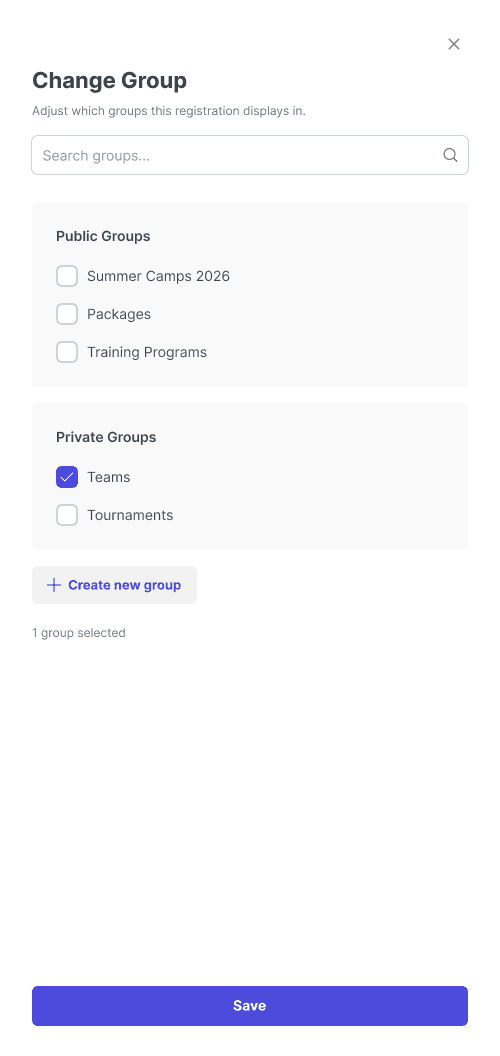
Group selection for an existing registration, with one group selected and Save.
Set visibility and order
Open the group’s settings and review its public or private visibility.
Set the visibility for the group, rather than looking for an individual program privacy setting.
Reorder groups and the programs within them so families see the most useful items first.
Assign a group before publishing a program. You can save a draft without one, but publishing requires it.

The Private control in group settings.
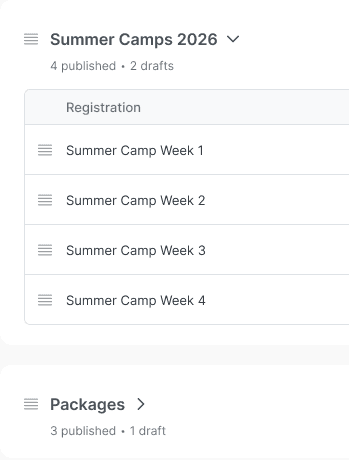
Reorder handles appear beside group names and individual registrations.
Check and share the family view
Open your club’s portal and check the groups under Registrations or Memberships.
Confirm that the intended active programs appear in the right order.
Use Share on the group to copy its link when you need to send it to families.
Note: A group with only drafts or closed programs is hidden from the portal’s group list. Its direct link may still open with no available programs. Check the family view before sending the link.