How to reschedule a lesson as an instructor in the iPhone app
Instructors can move an upcoming lesson to a new date or time in the iPhone app. Rescheduling keeps the same service and instructor, and sends an update to the people connected to the booking.

Instructors can move an upcoming lesson to a new date or time in the iPhone app. Rescheduling keeps the same service and instructor, and sends an update to the people connected to the booking.
Open the lesson
Open The Futures App on your iPhone using your coach or instructor account.
Go to Schedule.
Open the upcoming lesson you need to move.
Open the ⋯ menu on the booking details screen.
Select Reschedule.

Open the booking menu and select Reschedule.
Choose the new time
Choose a new date and an available start time.
Select Next.
Review the new date and time, then confirm the change.
Check the booking details to make sure the lesson now shows the correct time.
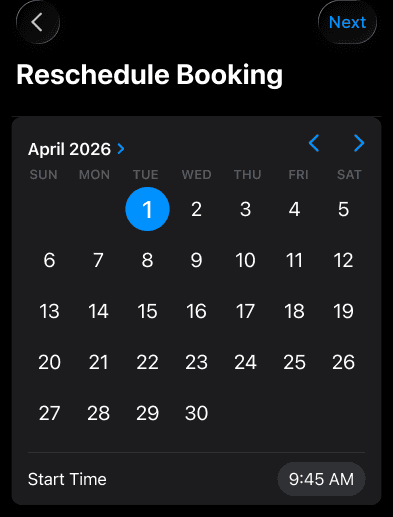
Choose a date and start time, then select Next.
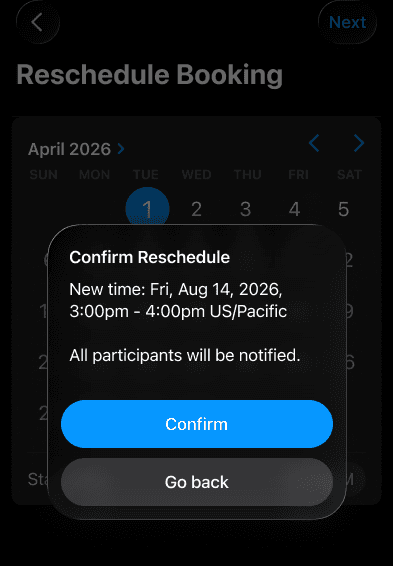
Example confirmation showing the new time and the participant notification notice.
An update is sent to the participant, instructor, and linked parents after the booking is rescheduled.
What you can change
Rescheduling changes the date and time. It does not change the service, instructor, or rate. You don’t need to cancel and create a replacement booking just to move the time.
If Reschedule isn’t available
Check that the booking is upcoming and that you’re signed in with your coach or instructor account. If you still can’t make the change, ask your organization’s admin for help.
Note: These steps are for instructors and admins in the iPhone app. They are not instructions for a parent or player account.