How to send a bulk email from the admin dashboard
Send a bulk email to people in your organization from the admin dashboard. Check recipients, sender details, and message content before sending, then review delivery status in Sent.
Send a bulk email to people in your organization from the admin dashboard. Check recipients, sender details, and message content before sending, then review delivery status in Sent.
Check the sender details
Review your organization’s email sender name and reply-to address in its email settings.
Use a reply-to inbox your staff checks. Replies go to that inbox, not an inbox inside the admin dashboard.
Compose the message
Open Communication → Email and select New.
Enter a clear subject and message.
Add recipients by name or email, or use the team, offering, or role selections.
Include parents or contacts if the message is intended for them, then check the resolved recipient list and count.
Add any needed PDF, DOC, or DOCX attachments and review them.
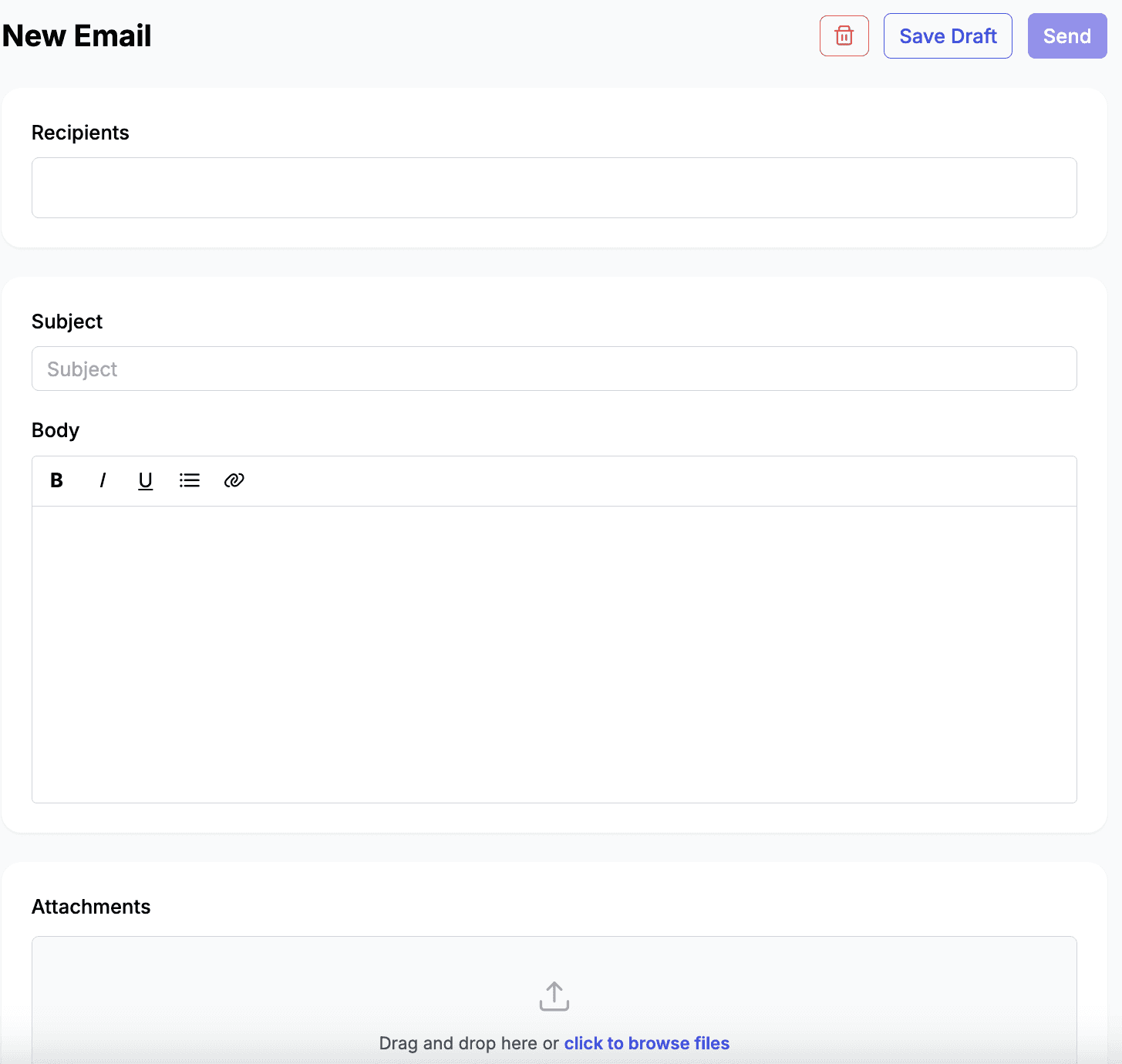
The New Email form includes recipients, subject, body, attachments, Save Draft, and Send.
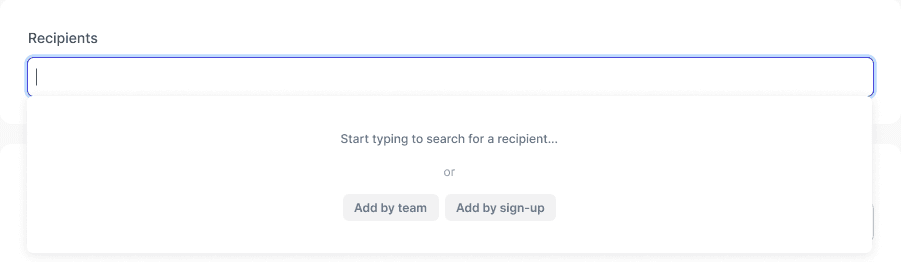
Search for a recipient, or choose Add by team or Add by sign-up.

Review the recipients, subject, body, and attachments before choosing Save Draft or Send.
Review and send
Check the subject, body, recipients, and attachments.
Save the message as a draft if it is not ready. Find it later in Drafts.
Send when ready and check the queued-recipient confirmation.
Open the message in Sent to review recipients and delivery status as results arrive.
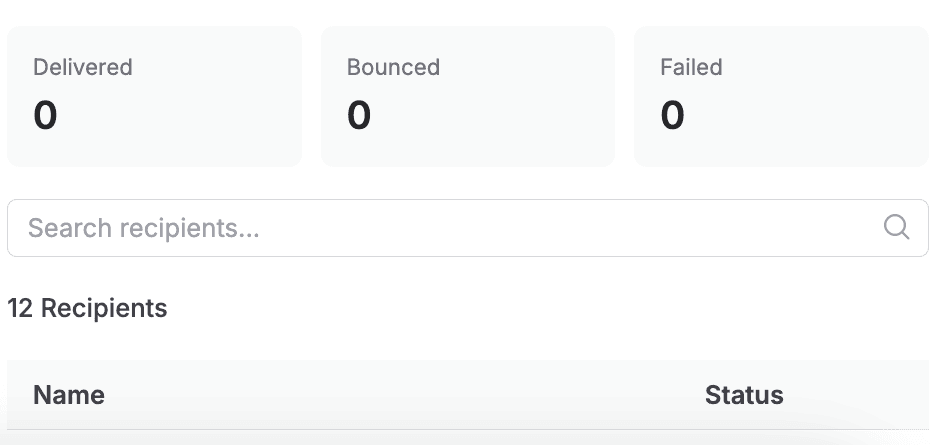
A sent email’s delivery summary and recipient search. Queued messages are not yet confirmed as delivered.
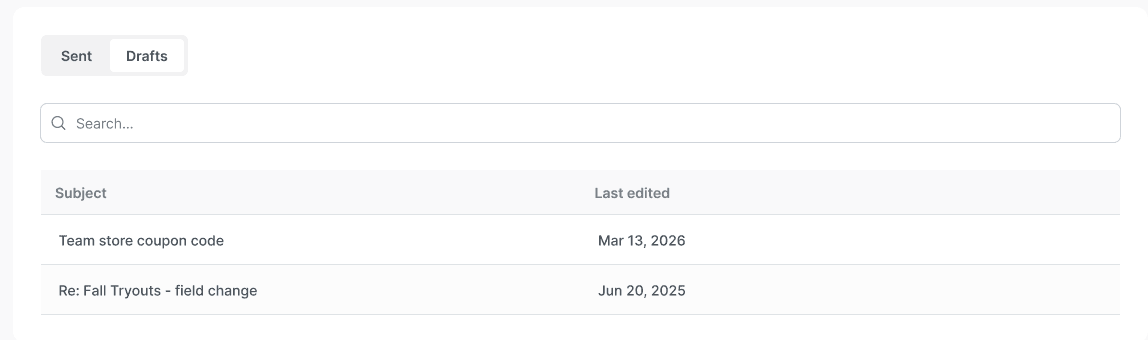
Saved messages in the Drafts tab.
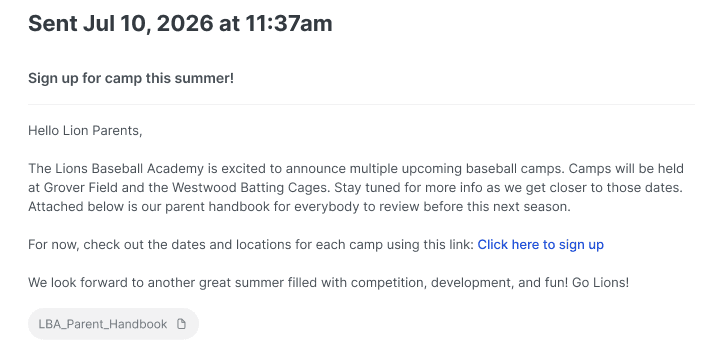
Example of the sent-message content and attachment.
Note: Queued does not mean delivered. A bad address does not stop the whole batch. Bulk emails include an unsubscribe link, and opted-out recipients are excluded from future bulk sends from your organization.