How to set custom installment amounts and dates
Set installment amounts and payment dates when creating a registration or invoice. A custom schedule lets you decide how the total is split and when each payment is due.
Set installment amounts and payment dates when creating a registration or invoice. A custom schedule lets you decide how the total is split and when each payment is due.
Open the installment settings
Start creating the registration or invoice in the admin dashboard.
For a registration, open the Pricing step. For an invoice, find its payment settings.
Turn on Allow installments.
Set the number of installments and review the amounts filled in for you.
Choose dates and amounts
Use Collect on to choose the supported collection schedule.
To set individual payment dates, choose Custom Dates.
Enter a date and amount for each installment.
Keep dates in order. Do not use the same date twice or a date before today.
Check that all installment amounts add up to the total price. Resolve any Amount remaining to assign message.
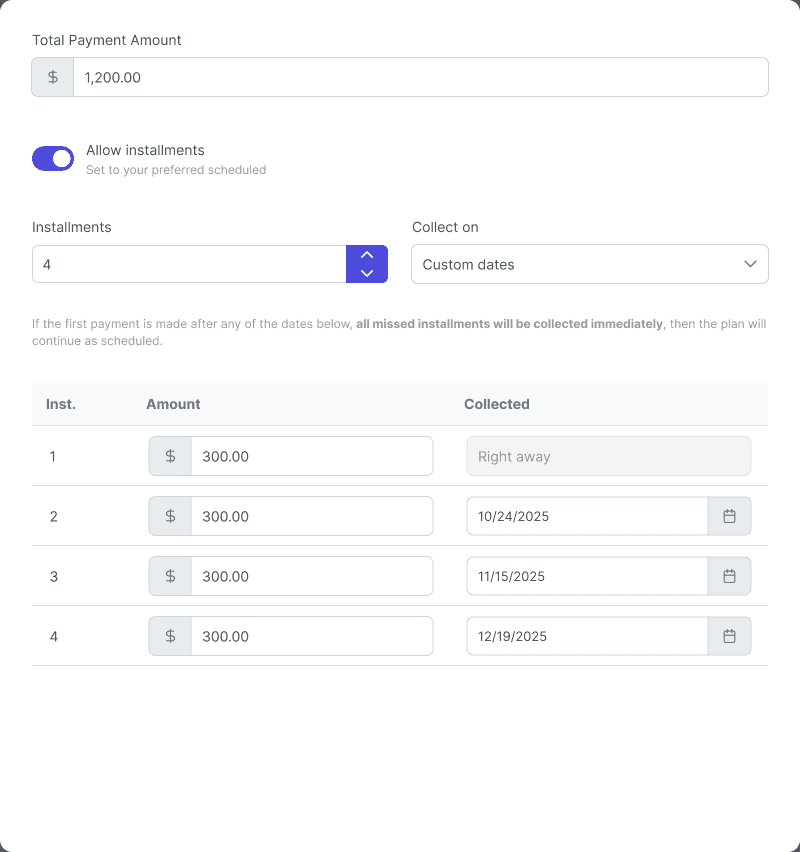
Example custom-date settings. Your amounts and dates will differ.

Example installment setup: $300 due right away and three later $150 payments, totaling $750.
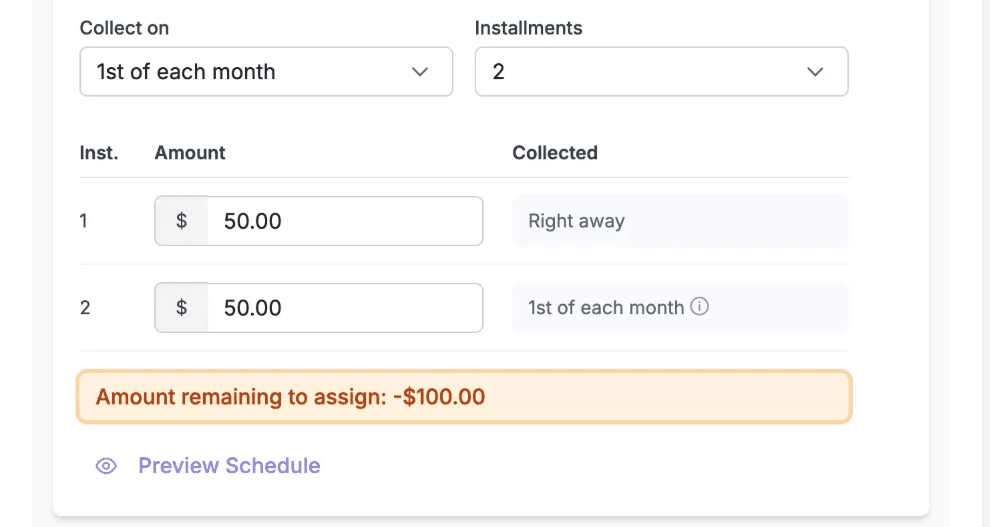
Registration setup example of an Amount remaining to assign warning. Resolve the mismatch before continuing.
Review before you finish
Recheck every amount and date in the schedule.
Finish the registration or invoice creation flow.
Check the customer payment page to confirm that the schedule is clear before sharing it.
Note: For custom-date schedules, installments already due are collected when a customer signs up. Keep that in mind when leaving a registration open after its first payment date.
This guide covers setup for registrations and invoices, not changes to an existing active plan or membership billing.