How to set up single-choice registration pricing options
Add named pricing options to a registration so each customer can choose the one that applies to them. Each option has its own price, and the customer selects one option before checkout.

Add named pricing options to a registration so each customer can choose the one that applies to them. Each option has its own price, and the customer selects one option before checkout.
Add pricing options
Start creating the registration in the admin dashboard.
Open Pricing and select Option-based pricing.
Add a pricing option with a name customers will understand and its price.
Add the remaining choices and put them in a clear order.
Review each name and amount before finishing setup.
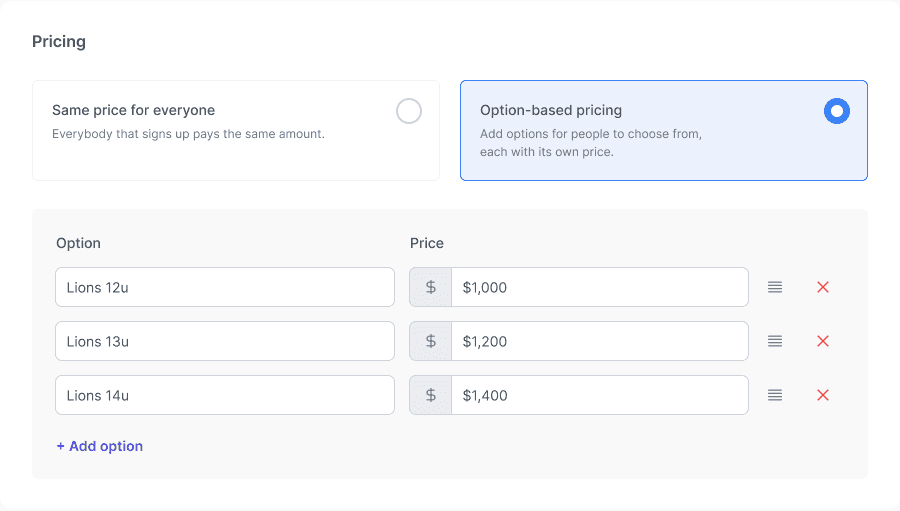
Name and price each option. Use Add option to add another choice, or drag the handles to reorder options.
Check what customers see
Open the registration in your club’s portal.
Confirm that the available options and prices are correct.
Select one option and check that checkout uses that option’s price.
Repeat for another option before sharing the registration link.
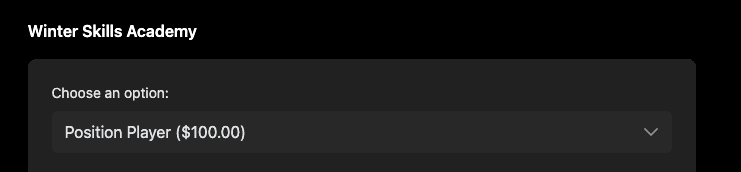
Portal example with one chosen pricing option and its price.
Keep the choices simple
Use names that explain the difference between options. Customers choose one pricing option for this registration; do not describe these choices as a multi-select list or promise a separate capacity limit for each option.