How to set up your first registration
Create a registration with pricing, payment dates, participant questions, and documents. Assign a group and check enrollment before sharing the program.

Create a registration in The Futures App to collect program sign-ups, participant information, document agreements, and payments. Assign a group and review the family-facing checkout before publishing.
Before you start
Your account needs access to Registrations and its payment settings. Have the program details, prices, enrollment dates, and any documents ready. Create bookable services first if you plan to include service benefits.
How do you start a registration?
Open Registrations in the admin dashboard.
Start a new registration.
Enter the public-facing title.
Enter the program description.
Use Group to select an existing group or create one.
Use Memberships for an ongoing recurring membership rather than treating it as a one-time program registration. A group can be assigned later while a program is a draft, but publishing requires one.
How do you set the price and payment schedule?
Open Pricing.
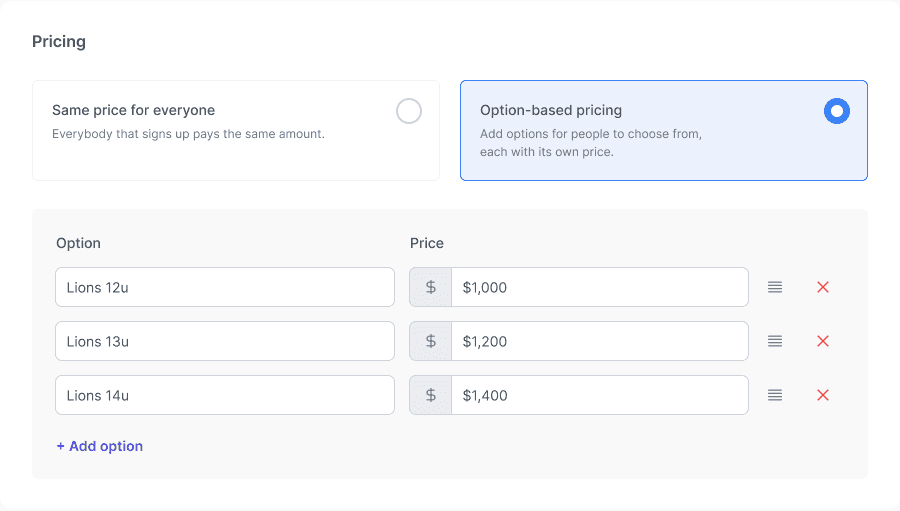
Choose a single price or Option-based pricing.
Enter the price for each choice offered.
Turn on Allow installments if you want to offer a payment plan.
Set the number of installments.
Use Collect on to choose the supported collection schedule.
Enter the installment amounts and any custom payment dates.
Check that all amounts add up to the registration price.
Resolve any Amount remaining to assign message.
Configure Early Bird Discounts if you want dated dollar discounts.
The first installment is collected at enrollment. Future payments use the saved plan method unless it is changed. For custom-date schedules, amounts already due are collected when the customer signs up. Review the displayed payment schedule to confirm each monthly collection date before customers enroll.
How do you set enrollment details?
Enter the program’s start and end dates if applicable.
Set an age range if needed.
Set enrollment opening and closing dates if needed.
Set a participant limit if needed.
Review the selected group’s public or private visibility.
Manage visibility on the group, not through an individual registration’s old Make Private action. Groups containing only drafts or closed programs are hidden from the portal’s group list; check the family view before sharing.
How do you collect information and document agreements?
Open the information-field settings.
Enable the participant and athletic fields you need.
Mark fields required only when an answer is needed to continue.
Add custom questions if the standard fields do not cover your needs.
Open Documents.
Upload the documents participants need to review.
Enable Require sign-ups to review and agree to document(s) if acceptance is mandatory.
Custom fields support text, number, date, single-select, and multi-select questions. You can reuse a field on other programs, but its answers belong to the specific program. Review the correct registration when preparing a participant export.
How do you publish and share the registration?
Review the title, group, prices, schedule, enabled questions, and documents.
Finish the setup flow.
Review the enrollment timing in the publish confirmation.
Confirm publication when the setup is correct.
Open the registration in the portal to check the family view.
Use Share on the group to copy its link when sharing the group with families.
Platform: Set up registrations on the web in the admin dashboard. Families complete the registration through your club’s portal.
Common questions
Can customers choose more than one pricing option?
Single-choice registration pricing lets each customer select one option for that registration. Do not describe the options as a multi-select list or assume each option has its own capacity limit.
Can you set different installment amounts and dates?
Yes. Set the amounts and supported collection dates in Pricing, keep custom dates in order, and verify that the full schedule matches the total price.
Does saving a draft make it available to families?
No. Review the group, publication, and enrollment timing before sharing. A program can remain a draft without a group, but it needs a group before publishing.