How to set your instructor availability in the iPhone app
Set your weekly booking hours and add one-time availability changes from the iPhone app. This helps families find times when you’re available without asking an admin to update your schedule.

Set your weekly booking hours and add one-time availability changes from the iPhone app. This helps families find times when you’re available without asking an admin to update your schedule.
Open your availability
Open The Futures App on your iPhone using your instructor account.
Go to Schedule.
Open the ⋯ menu and select your availability settings.
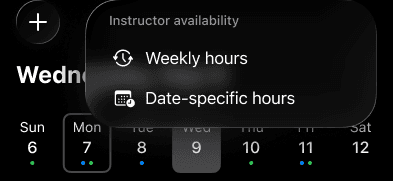
Instructor availability includes Weekly hours and Date-specific hours.
Set your regular weekly hours
Open the weekly availability section.
Choose a day and use + to add a time block.
Set the start and end time for that block.
Add more blocks or repeat for other days as needed. Swipe a block to delete it.
Save your changes before leaving the screen.

Weekly Hours on iPhone, including multiple blocks, unavailable days, and Save.
Make a one-time change
Open the date-specific availability section.
Add an entry for the date you want to change.
Choose whether to add available time or mark time as unavailable.
Set the time range, or choose the all-day unavailable option when you need the whole day off.
Save your changes.
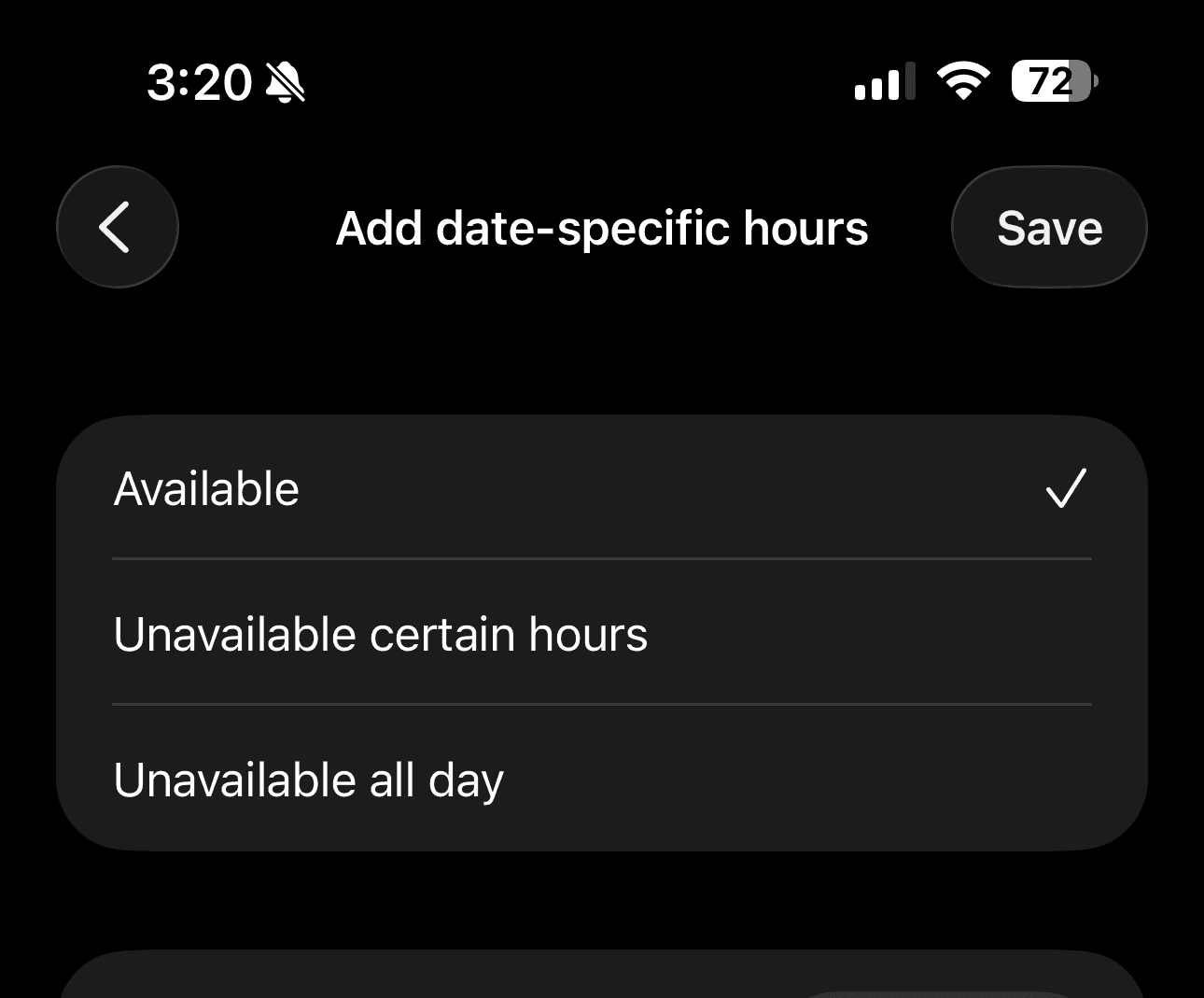
Date-specific availability choices and Save on iPhone.
Date-specific changes let you handle a day off or an extra opening without changing your regular weekly hours.
Before you leave
Save the changes you want to keep. If you leave with unsaved changes, use the prompt to save, discard, or return to editing.
Note: Updating availability changes when new bookings can be made. It does not move or cancel an existing booking. You can edit only your own instructor availability from this screen.
If availability settings aren’t visible, ask your organization’s admin to check that you’re set up as an instructor.