How to switch between your profile and your player’s
Switch between your profile and a managed player’s profile in The Futures App on iOS or Android. Check the active person before viewing activity.

Switch between your profile and a managed player’s profile in The Futures App without signing out. Check the active profile before viewing activity or sending a message.
Before you start
Sign in to the account that manages the player whose profile you want to use.
How do you switch profiles?
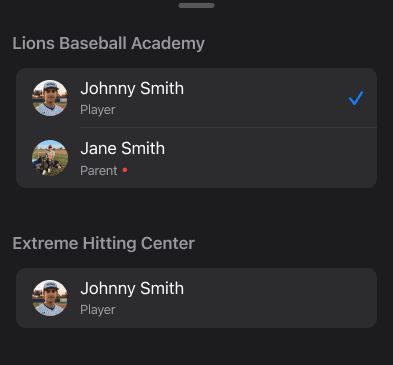
Open the app’s profile switcher.
Find your own profile or the managed player you want to use.
Select the correct person.
Check the active-profile indicator before continuing.
Players in the same club appear as separate entries. You do not need to sign out and sign back in.

Platforms: Profile switching works in the iOS and Android apps.
Common questions
What changes when you switch profiles?
The app shows the selected person’s chats, schedule, feed, bookings, and notifications. Before sending a message or checking a booking, make sure the intended person is active.
What should you do if a player is missing?
Check that you signed in to the account that manages that player.
Contact your club or select Request Help if the expected managed profile is missing.
Do not create a duplicate player or share another person’s password to make them appear.
Does switching profiles give you access to another person’s billing?
No. Switching profiles does not by itself grant access to another person’s billing account.