How to waive or change a scheduled payment amount
Waive an unpaid scheduled payment or change its amount from the admin dashboard. The payment keeps a record of the change so your staff can understand the updated balance.

Waive an unpaid scheduled payment or change its amount from the admin dashboard. The payment keeps a record of the change so your staff can understand the updated balance.
Find the unpaid payment
Open Payments Log in the admin dashboard.
Select Scheduled and find the payment you need to change.
Check the customer, program, amount, and due date.
Open the payment’s ⋯ menu and select Waive/Change Payment.
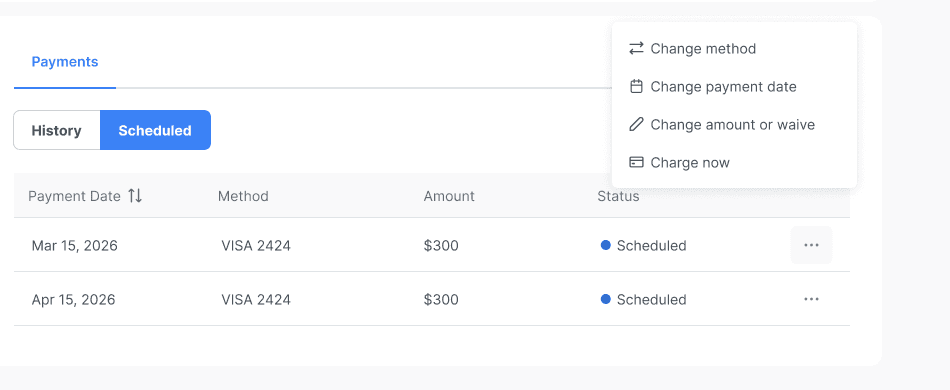
An unpaid scheduled payment’s menu includes Change amount or waive.
Waive or change the amount
Choose whether to waive the payment or enter a different amount.
Select a reason and add notes as prompted. Use a clear explanation your staff can understand later.
Review the new amount before confirming the change.
Check the updated scheduled payment and plan balance.

Choose Change Amount or Waive, review the amount, and add a reason or note as prompted before saving.
Review the change history
Open the payment details to review the original and updated amounts, who made the change, and when it was made. A waived payment stays visible rather than disappearing from the schedule.
Important: This action changes an unpaid scheduled amount. It is not a refund of a payment already collected.