How to create a customer booking in the iPhone app
Create a customer booking from Schedule in the iPhone app. Choose the service, instructor or facility, participant, and payment details, then review everything before creating the booking.

Create a customer booking from Schedule in the iPhone app. Choose the service, instructor or facility, participant, and payment details, then review everything before creating the booking.
Choose the service and session
Open Schedule in the iPhone app.
Select Create booking.
Choose the service from lessons, classes, or rentals.
Choose the instructor and facility asset when prompted. A rental may not need an instructor.
Choose the date and time for the session and check availability.

Create booking is available in the iPhone app’s Admin tools menu.
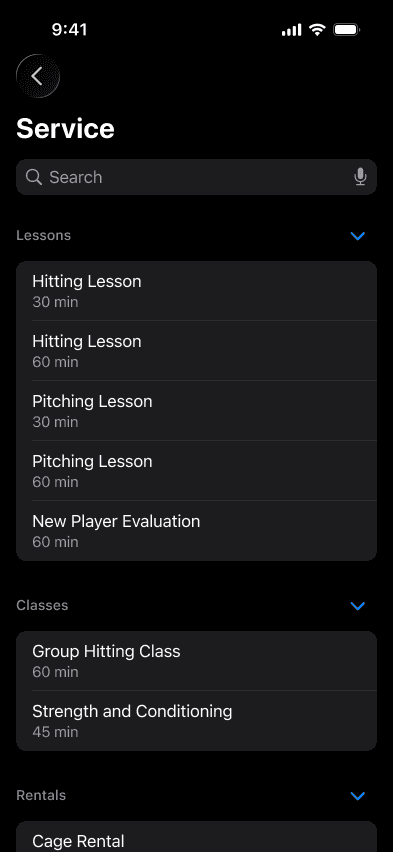
Choose the service and duration in the iPhone booking flow.
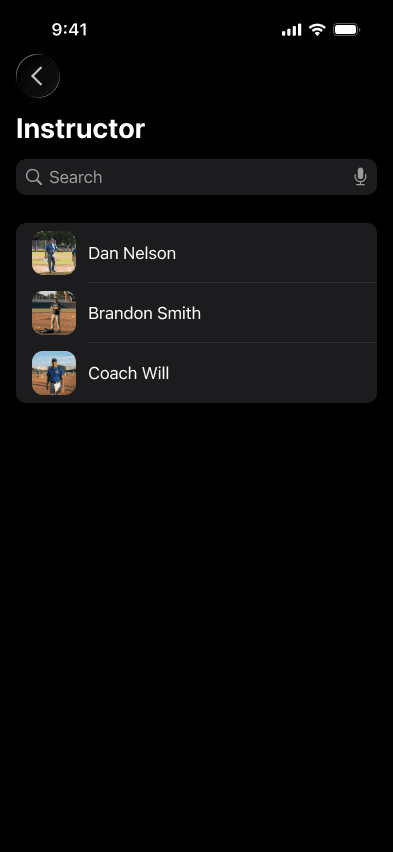
Choose an instructor for a lesson.
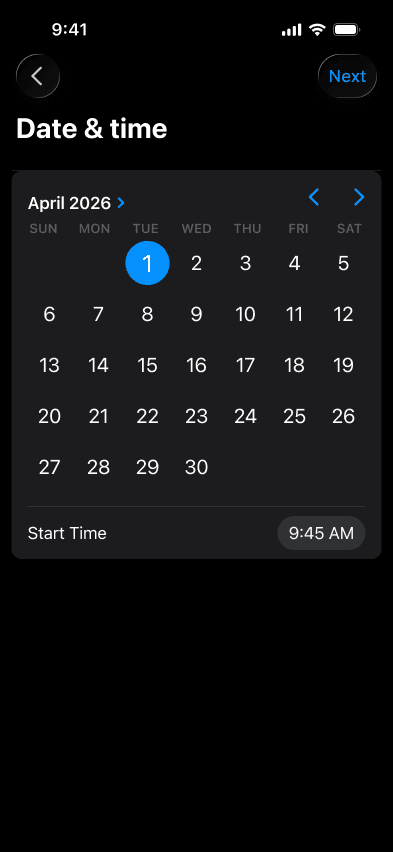
Choose the booking date and start time.
Choose the customer and payment
Select the correct Participant. Use Create new only if a new player record is needed.
Check the billing contact on the payment step.
Apply an available benefit if it is appropriate for this booking.
Choose the payment option: a stored method, Paid in Cash, or Waive, as appropriate. Use Add new under Payment methods if a new method is needed.
Review and create
Check the participant, service, instructor or asset, time, total, and payment choice.
Review the confirmation-email preferences.
Tap Create and check that the booking appears on Schedule.
Next: How to filter and export Booked Sessions
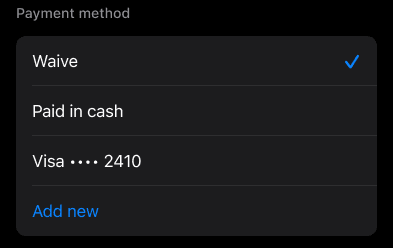
Booking payment choices include Waive, Paid in cash, a stored method, and Add new.
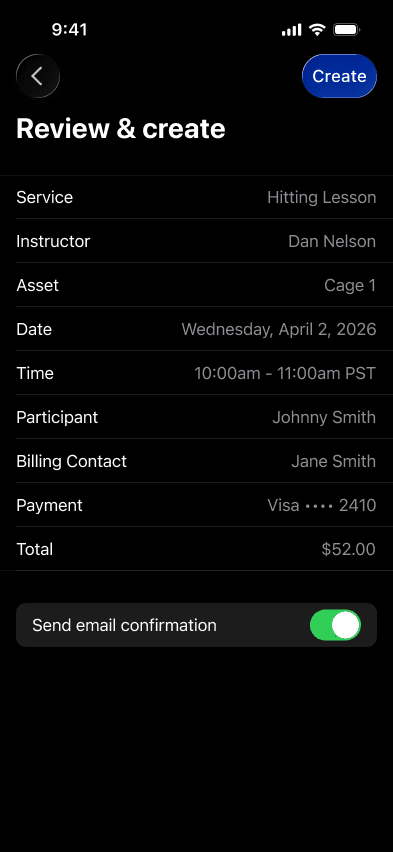
Review the session, asset, total, and confirmation-email preference before tapping Create.
Note: Available booking actions depend on staff permissions. Do not select cash or a waiver merely to bypass a payment problem.