How to create a parent account in the Android app
Create a parent account in the Android app using your club’s team code. Then link an existing player or create a player when your club confirms that no account exists.

Create a parent account in the Android app using your club’s team code. Then link an existing player or create a player when your club confirms that no account exists.
Have your team code ready
Ask your club or coach for the team code if you do not have it.
Use your own name and email for the parent account, not your child’s.
If you already have an account, sign in rather than creating a duplicate.
Create your account
Open the Android app and select Create Account.
Enter your team code.
Choose I am a parent.
Create your account using your email and a password.
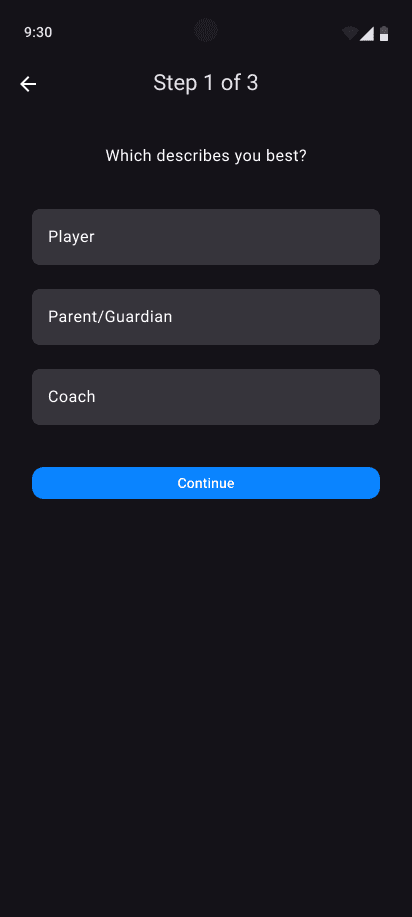
Choose Parent/Guardian when creating a parent account on Android.
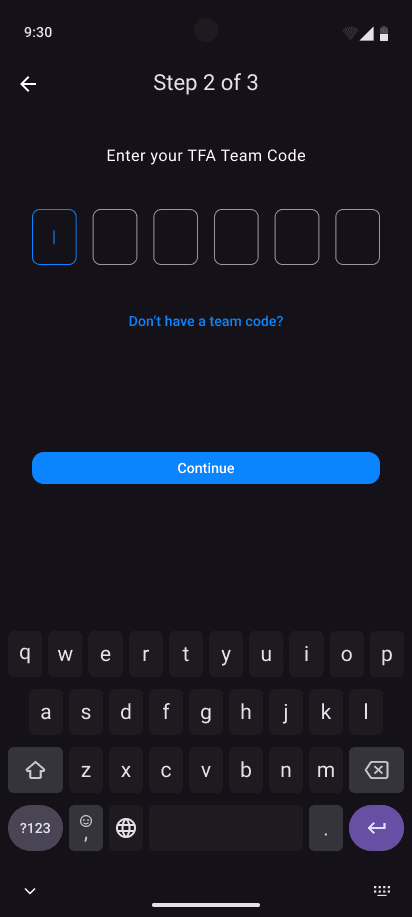
Enter your club’s team code.
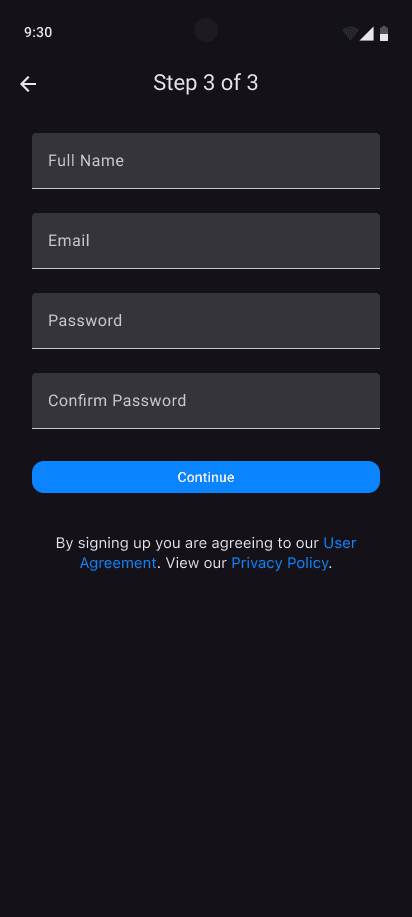
Enter your own account details, including your name, email, and password.
Link your player
In My Players, search for your player by name.
Review the matching names and profile pictures carefully.
Select the correct existing player and confirm the link.
If there is no match, check with your club before choosing the create-player option. Follow the prompts to enter the player’s details.
Check My Players to make sure the correct player is linked.
Next: How to switch between your profile and your player’s

Review the player shown before confirming the link.
If you cannot find the right player
Do not select a similar name or create another profile for a player who already has one. Contact your club or use Request Help in the help center so the link can be checked.