How to create a parent account in the iPhone app
Create your own parent account in the iPhone app, then link your player. Use your own name and email for your account so your family’s profiles stay separate.

Create your own parent account in the iPhone app, then link your player. Use your own name and email for your account so your family’s profiles stay separate.
Before you start
Have the team code supplied by your club or coach ready.
If you already have an account, sign in instead of creating another one.
Have your player’s account email ready for the linking step. If you do not know it, check with your club before creating a new player.
Create your parent account
Open the app and choose Create Account.
Choose the parent role, then enter your team code.
Enter your own name, email, and password to create your account.
Continue to the player-linking screen.
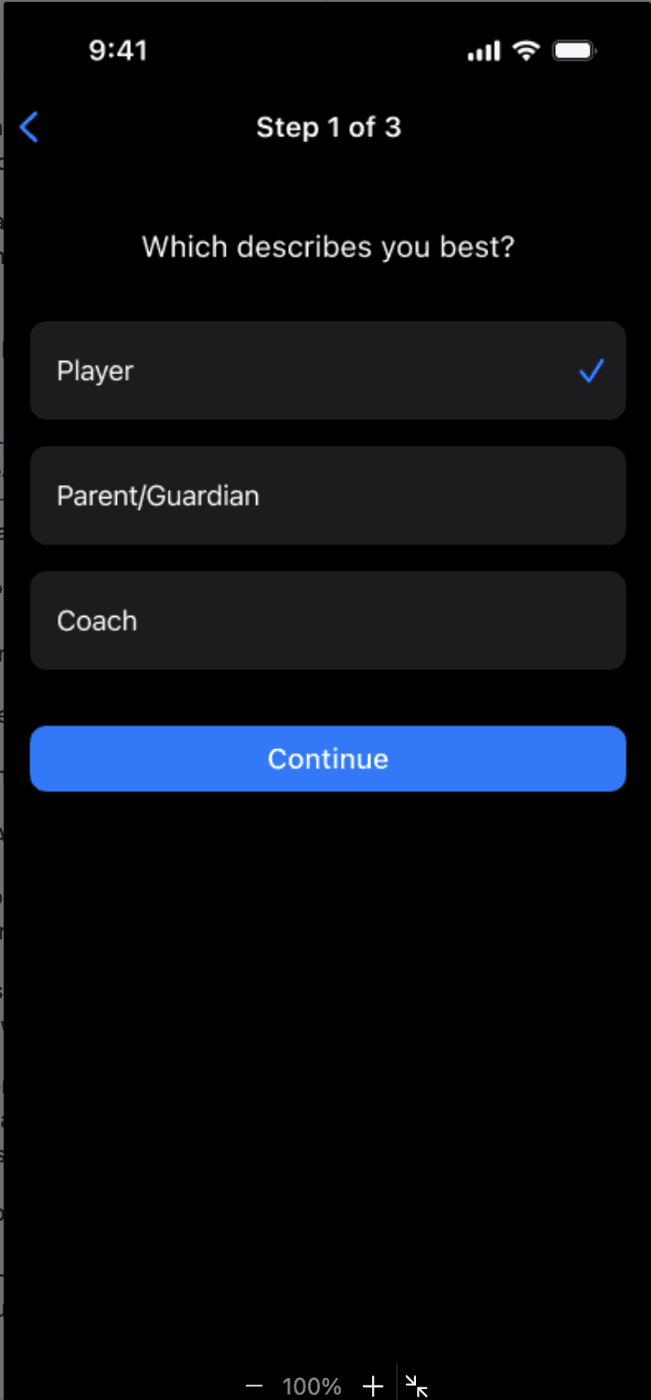
Choose Parent/Guardian for your own parent account. The example screen currently has Player selected.
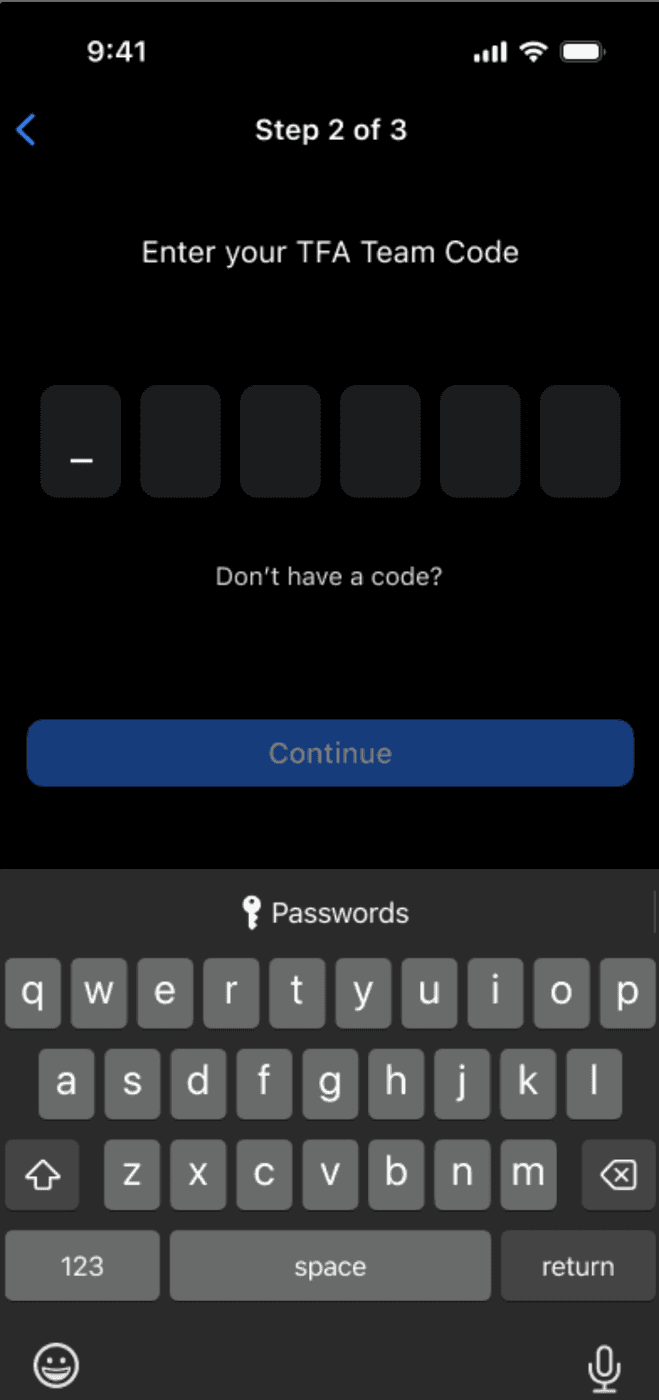
Enter the team code provided by your club.
Link your player
Enter your player’s email when prompted.
If the app finds an existing player, check the details and confirm the correct match.
If no player is found, confirm the email with your club before using the create-player option. Enter the player’s full name when prompted.
Open My Players and check that the correct player appears. To link another player later, use the + button in My Players.
Next: How to switch between your profile and your player’s
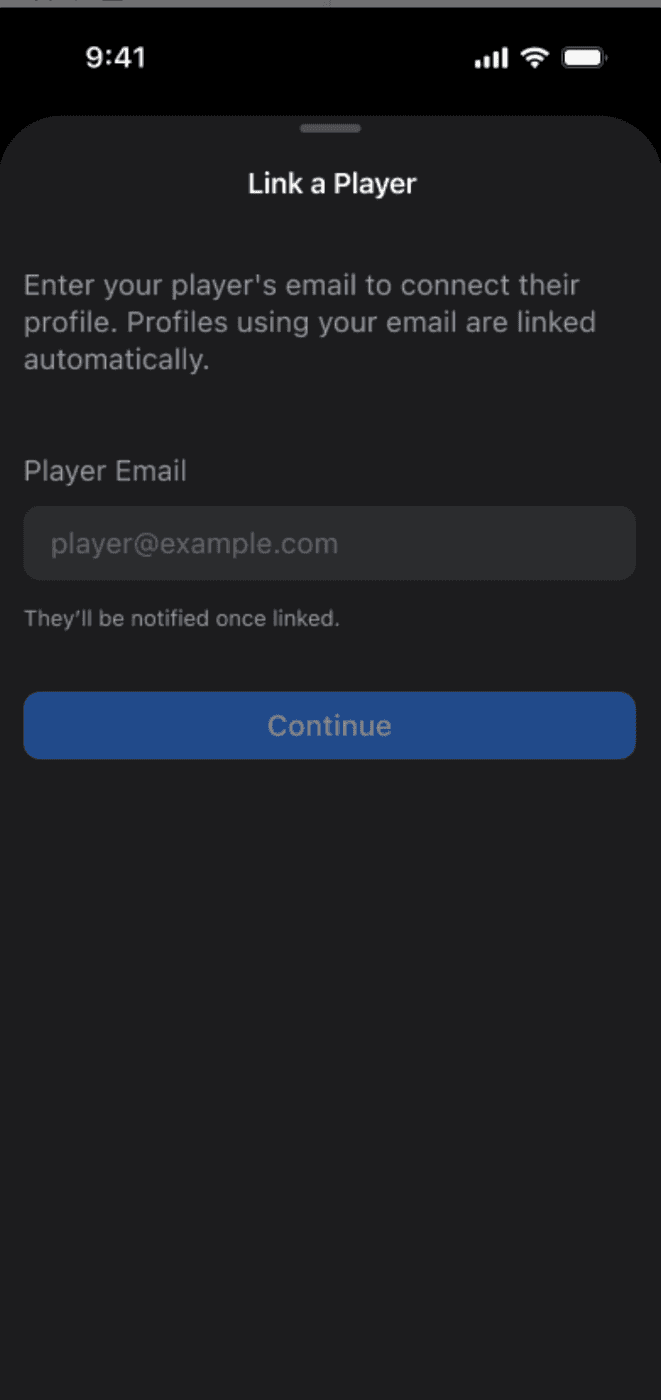
Link a Player asks for the player’s email. Profiles using your email are linked automatically.
Need help linking?
If a match looks wrong or your player already exists but cannot be found, contact your club or select Request Help in the help center. Do not create a second player just to get past the linking step.