How to create an account and sign in to your club’s portal
Use your club’s portal to create an account or sign in to an existing one. Once you’re signed in, you can register for programs, book services, and open your Billing page.

Use your club’s portal to create an account or sign in to an existing one. Once you’re signed in, you can register for programs, book services, and open your Billing page.
Before you start
Use the portal link provided by your club. If you already have an account, sign in with the email address you used before instead of creating another account.
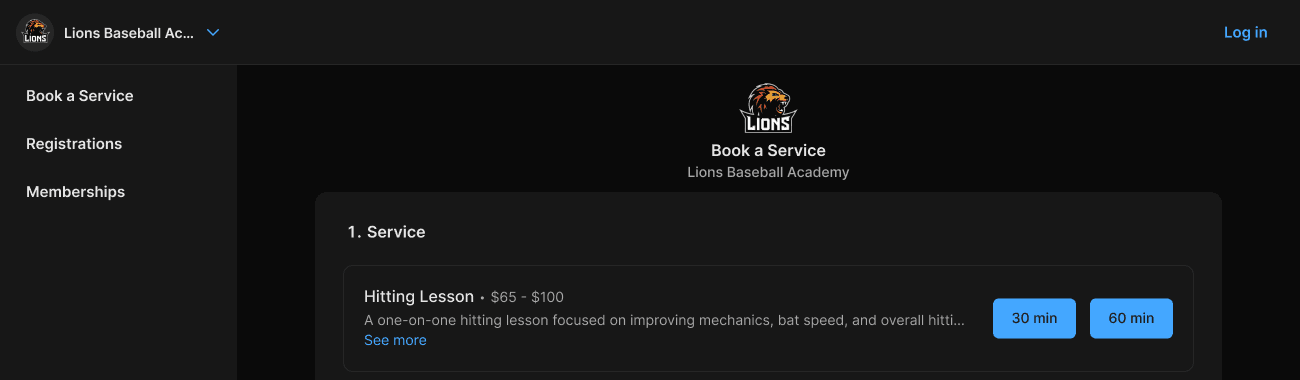
When signed out, use Log in in the portal’s top-right corner.
Sign in with your email and password
Open your club’s portal.
Select Log in in the top-right corner.
Enter the email address and password for your account.
Submit the login form. Your profile image or initials will appear in the top-right corner when you’re signed in.

Sign in with your email and password, or use a one-time link.
Sign in with a one-time email link
Open Log in and enter your account email address.
Select Log in with a one-time link.
Open the email and follow the sign-in link.
If the email doesn’t arrive, check your spam or junk folder. Select Resend on the Check your email screen to request it again.
Create an account
Open the registration or booking you want to complete in your club’s portal.
When you’re asked to sign in or create an account, select Create account.
Enter your email address and the contact details requested on the form.
Create a password and finish the account setup shown on screen.
Continue with your registration or booking. Creating an account alone does not complete the purchase.
Next: How to navigate the portal as a parent
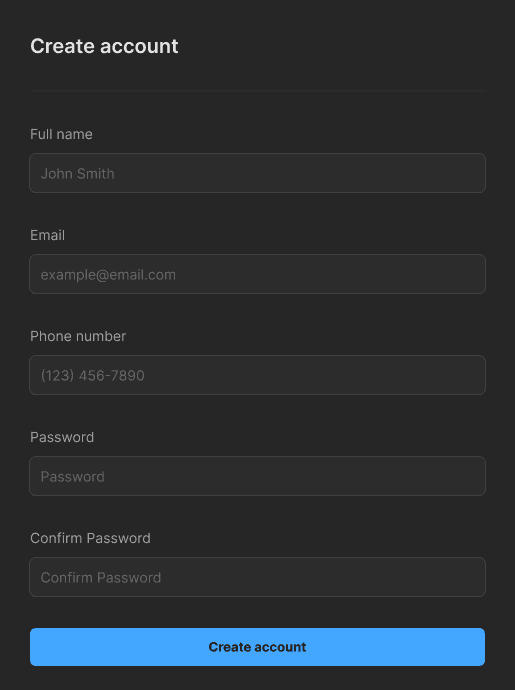
Enter your account details, then select Create account.
If you can’t sign in
Check that you’re using the correct email address. If you’ve forgotten your password, use the Set or reset password option on the login screen.