How to set up bookings for your organization
Set up bookable services, instructors, facility assets, and availability. Review booking settings and the customer checkout before sharing service links.

Set up services, instructor availability, and facility assets in The Futures App so customers can book eligible times. Review the customer-facing service and checkout before sharing a booking link.
Before you start
Your staff account needs booking administration access. Have your service descriptions, durations, rates, instructor list, facility spaces, availability, and required documents ready.
How do you review global booking settings?
Open your booking administration area.
Open Setup.
Review the facility address used in booking details and confirmations.
Set the minimum booking notice if needed.
Review any cancellation or refund settings against your organization’s policy.
Add any required booking documents.
Save the settings using the control shown.
Check your organization’s cancellation and refund settings before communicating terms to customers. Do not assume that cancellation automatically refunds money or restores a credit.
How do you create a bookable service?
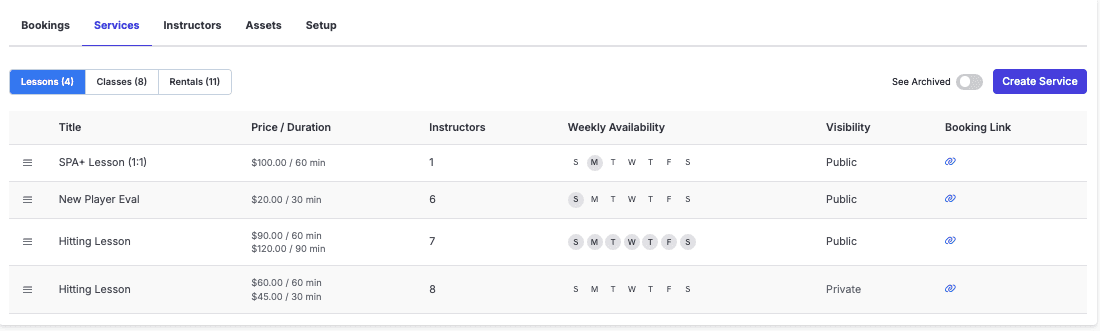
Open Services.
Choose the relevant Lessons, Classes, or Rentals tab.
Select Create Service.
Enter the public-facing title and description.
Enable the group-service option if the service takes multiple participants.
Set the supported duration and rate.
Choose the scheduling mode.
Set the service’s weekly availability.
Link the instructors and facility assets required for the service.
Review public or private visibility.
Save the service.
A service has a direct booking link. Public services appear in the portal; private services use direct-link access.
Which scheduling mode should you choose?
Open Booking: Customers choose an available time within the service’s availability. It supports multiple durations and rates.
Fixed Slots: You set the exact start times customers can choose. It uses one duration per service.
How do you set up instructors?
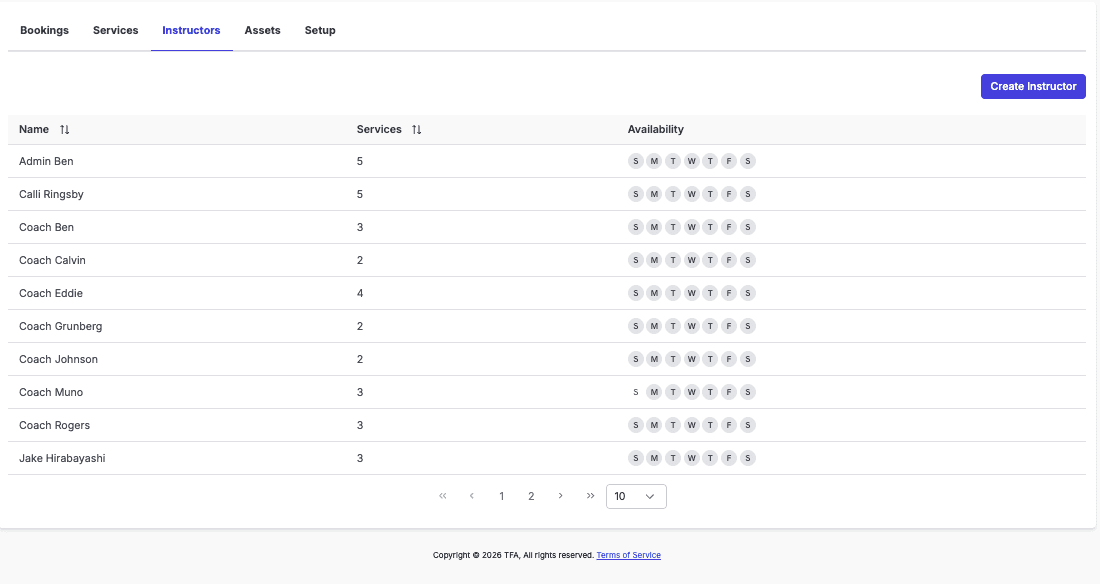
Open Instructors.
Add the instructor.
Link the services the instructor offers.
Set the instructor’s weekly availability.
Review whether the required service, instructor, and asset are available at the same time.
Instructors can update their own weekly and date-specific availability in the iPhone app. They do not need an admin to make every availability change. This does not give them access to edit other instructors, and availability changes do not move existing bookings.
How do you set up facility assets?
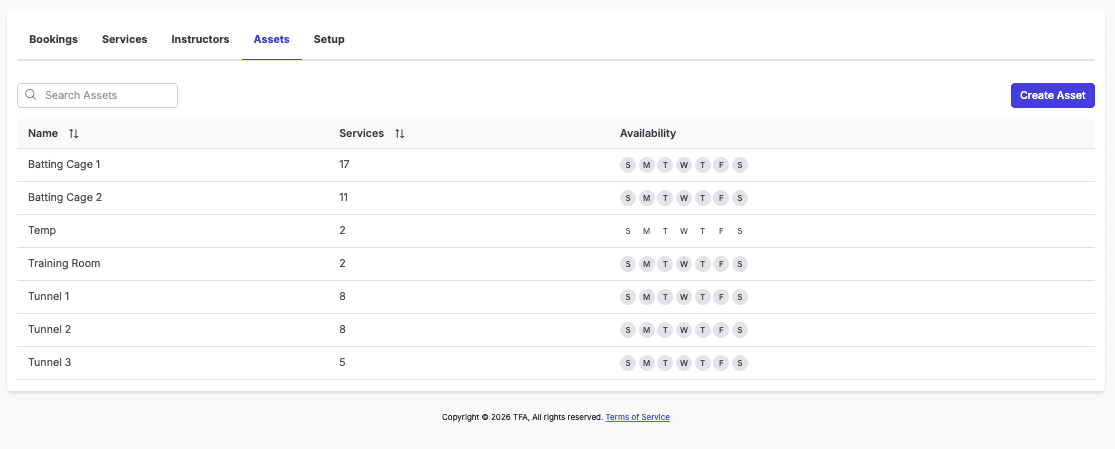
Open Assets.
Create an entry for each bookable space.
Link the services that can use the space.
Set the asset’s weekly availability.
Review the linked assets for each service.
TFA assigns an available linked asset when a booking is made. Linking only one asset limits that service to that space. Rentals can be offered without a scheduled instructor.
How do you review the booking calendar?
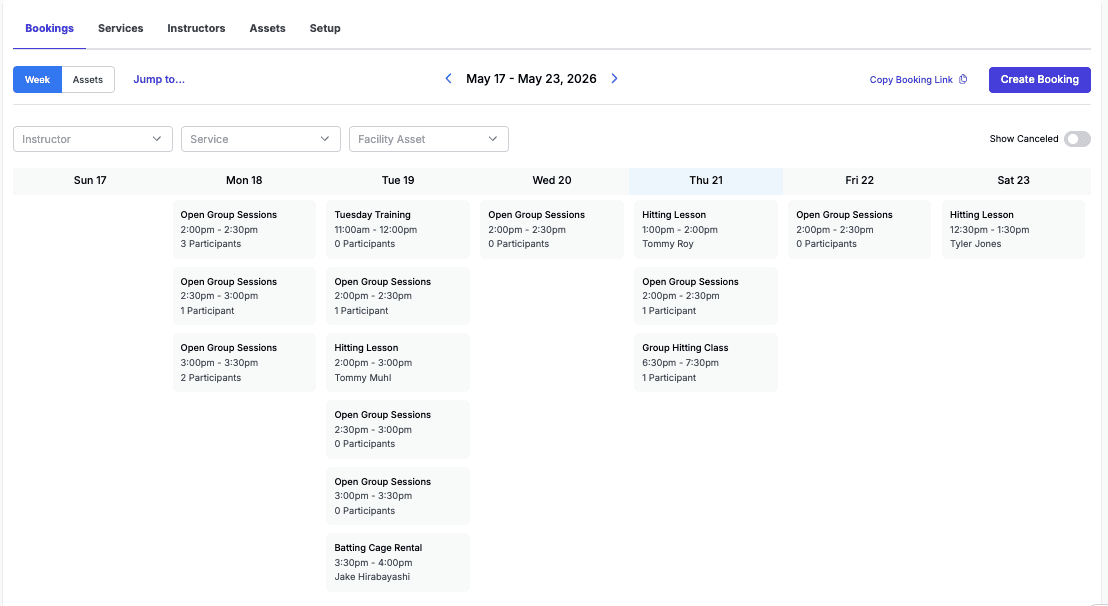
Open Bookings.
Choose Week to review bookings across the week.
Filter by instructor, service, or facility asset as needed.
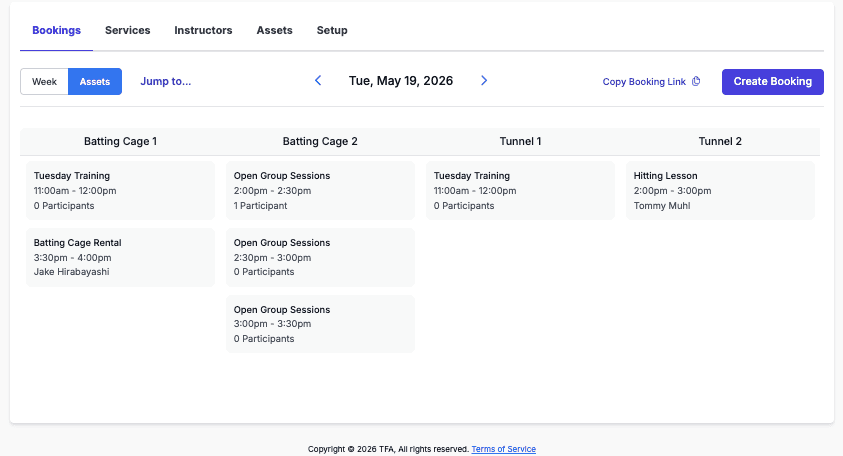
Choose Assets to review a single day by space.
Select a booking to review its instructor, time, asset, rate, and participants.
Use the canceled-booking display option when you need to review canceled items. Review the available actions on the correct booking or participant rather than assuming every action applies to the entire group session.
How do you create a booking for a customer?
Select Create Booking from the calendar.
Select the service and duration.
Choose the instructor if the service requires one.
Choose the available asset if required.
Select the date and start time.
Select the participant.
Select the billing contact.
Choose the authorized payment method or supported payment option.
Review the participant, time, location, and total.
Confirm the booking using the control shown.
Use Copy Booking Link when you want to send a customer to the booking flow. Customers can select their service and eligible time in the portal, then review the participant, available benefit, and total at Finish & Pay. Do not assume the app uses identical screens or controls.
Next: How to filter and export Booked Sessions
Platforms: Use the web admin dashboard for setup. Instructors can manage their own availability and reschedule upcoming lessons in iOS using the dedicated guides. The parent booking-cancellation guide also covers iOS.
Common questions
Why isn’t a time available to customers?
The service and every instructor or asset required for that booking must be available. Review their linked schedules and the minimum booking notice before changing customer instructions.
Can customers use package or membership benefits?
Yes, when the benefit is eligible for the participant and service. They select it in Apply discount or credit at checkout and review the updated total. Do not assume every benefit covers every service or is shared between players.
Who can reschedule a lesson?
Instructors can reschedule upcoming lessons in the iPhone app while keeping the same service and instructor. Customers should contact the club if a change action is unavailable. This guide does not promise parent self-rescheduling or a universal deadline.
Does cancellation guarantee a refund?
No refund or restored credit should be assumed. Review the information displayed for that booking and your organization’s policy. Canceling a booking, stopping remaining payments, and refunding collected money are separate tasks.