How to set up membership and registration benefits
Add service benefits to memberships or registrations. Choose covered services, discounts, and usage limits, then review each customer’s benefit details.

Add benefits in The Futures App to give customers discounts or credits for eligible lessons, classes, or rentals. Choose the covered services, discount, and usage limit for each benefit.
Before you start
Your account needs permission to manage the membership, registration, or user benefit. Create the bookable services before selecting them for a benefit. Review the offering’s payment and eligibility settings rather than assuming every enrollment immediately unlocks every benefit.
How do you add a benefit to a program?
Open the membership or registration you want to configure.
Open Benefits.
Select Add Benefit.
Select the services the benefit covers.
Choose the discount amount.
Choose a limit type.
Enter a quantity if the selected limit requires one.
Select Done to save the benefit.
Review the saved benefit before enrolling customers.
The discount can range from a partial discount to fully included service. A benefit can cover one service or multiple selected services.
How do you choose a usage limit?
Unlimited: No usage-count cap while the benefit is eligible and active.
Recurring: A set number of uses that resets with each successful billing cycle, following the membership cadence.
Fixed Limit: A total number of uses for the membership or registration. It does not automatically renew.
For example, a fixed limit of 10 with a fully included lesson benefit allows 10 eligible lesson bookings. Review any expiration date and the participant attached to the benefit.
How do you assign a benefit directly to a customer?
Open Users.
Search for the customer.
Open the correct user profile.
Open Benefits.
Review existing benefits and usage before adding another one.
Select Add Benefit.
Configure the covered services, discount, limit, and quantity.
Save the benefit using the control shown.
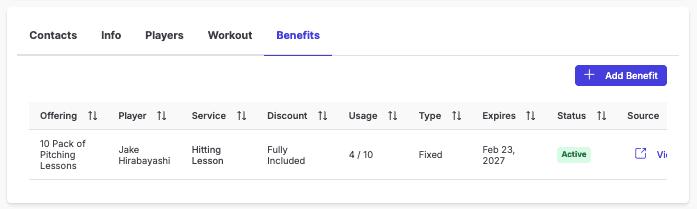
Where your registration enrollment flow offers waived payment, you can also add a customer to the package registration using that option. Check the resulting benefit assignment. Do not use a new manual benefit as an assumed substitute for an unresolved refund or credit-restoration action.
How do you check benefit usage?
Open the customer’s Benefits tab.
Review the covered service, usage count, status, expiration, and source offering.
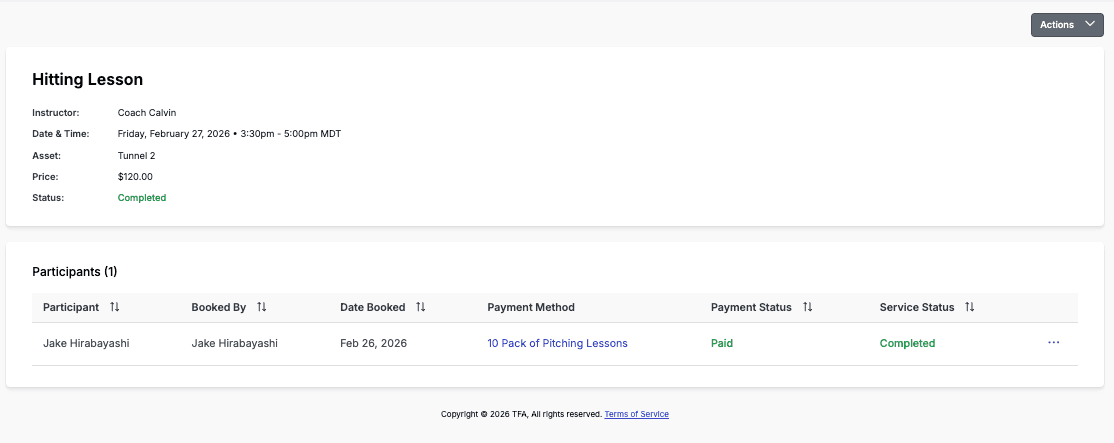
Open the linked source or booking when you need the transaction details.
Next: How to use package or membership credits when booking
Platform: Configure and review benefits on the web in the admin dashboard. Customers can apply eligible benefits in the portal’s booking checkout.
Common questions
Which services can benefits cover?
Benefits can cover lessons, classes, and rentals. Select the specific eligible services when configuring the benefit.
What appears when a booking is fully covered?
A fully covered booking may have a zero-dollar amount in the Payments Log. Review its booking and benefit source for the actual details. A partial discount can leave a balance to pay.
Does canceling or refunding a booking automatically restore a credit?
Do not assume it does. Check the booking’s cancellation information and your organization’s policy before promising a restored credit or issuing a replacement benefit.