How to use the Payments Log
Find payments in the Payments Log, review their status, and use available actions to update scheduled charges. Check the source and amount before acting.
Use the Payments Log in The Futures App to review collected, outstanding, overdue, and scheduled payments. Open a payment’s source or available actions to investigate or update it.
Before you start
Your staff account needs payments access. Confirm the customer, source, amount, and payment status before changing a payment or attempting a charge.
How do you find a payment?
Open the Payments Log in the admin dashboard.
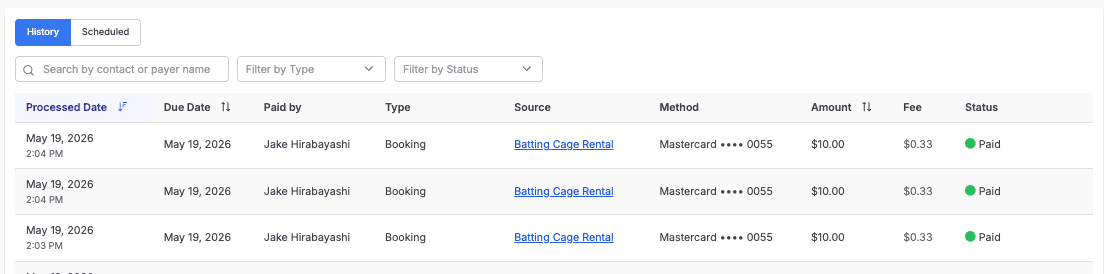
Choose History for processed payment activity or Scheduled for future payments.
Search by customer name.
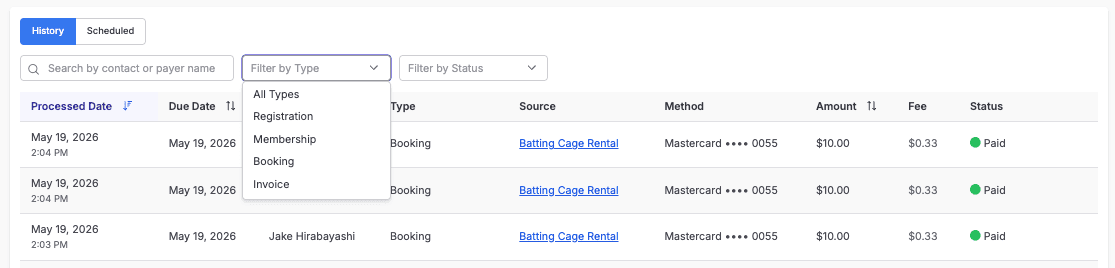
Use Type to narrow the results to registrations, memberships, bookings, or invoices.
Use Status to narrow the results further.
Select a payment’s source name to open its details.
How do you read the summary panels?
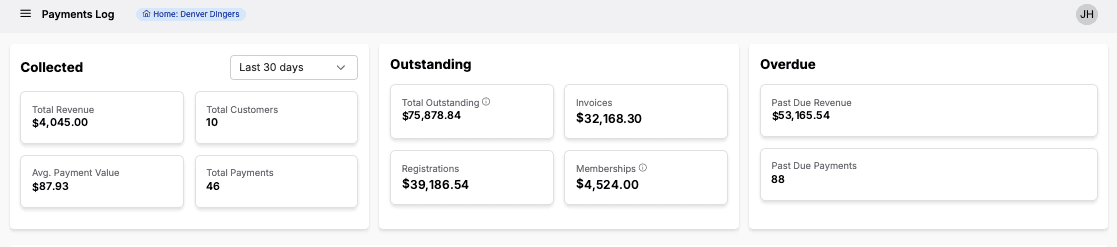
Collected: Revenue collected, customers, average payment value, and payment count. Use the date filter to adjust the displayed period; the panel defaults to the last 30 days.
Outstanding: Outstanding invoice, registration, membership, and total amounts.
Overdue: Past-due amount and payment count.
Outstanding and Overdue show all-time figures. Do not treat a revenue summary as a bank-deposit or net-payout statement. Check the underlying payment and refund records when reconciling money.
How do you act on a failed or past-due payment?
Find the payment in History.
Review the payment’s details and current method.
Open the payment’s ⋯ menu.
Select Change method if you need to update the method.
Select Charge now only when you intend to retry the payment.
Review the resulting status.
A failed payment means an attempt was declined. A past-due payment is overdue and uncollected. Investigate the payment details rather than assuming why it failed.
How do you change a scheduled payment?
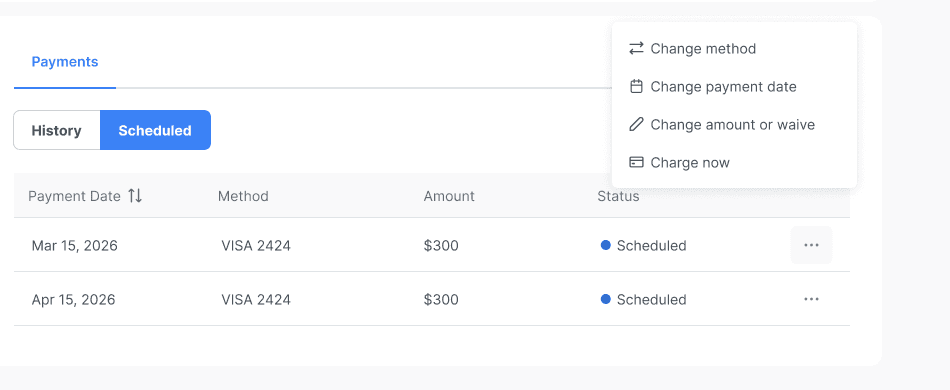
Find the payment under Scheduled.
Open its ⋯ menu.
Select Change method, Change payment date, Change amount or waive, or Charge now, depending on the change you intend to make and the actions available.
Review the requested change before saving or confirming it.
Check the resulting payment details.
Charge now collects the payment immediately rather than waiting for the scheduled date. For amount changes or waivers, use How to waive or change a scheduled payment amount. Waiving an unpaid payment is not the same as refunding money already collected.
How do you change a payment date?
Select Change payment date for the scheduled payment.
Choose the new date.
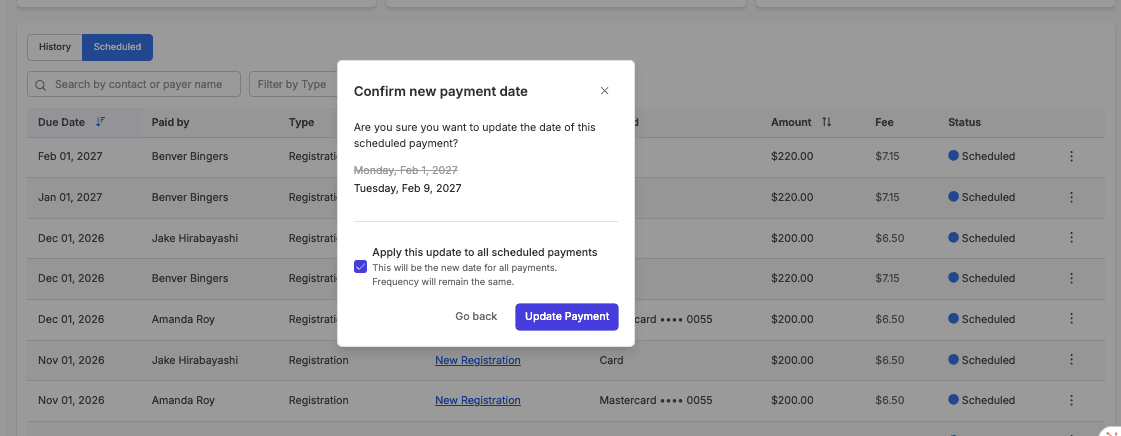
Review whether the change applies to this payment only or all scheduled payments.
Confirm the intended scope.
Check the remaining schedule.
Changing one installment leaves the other dates alone. Applying a date change to all scheduled payments changes the remaining cadence while keeping its frequency. Review the full schedule before confirming.
Platform: Use the Payments Log on the web in the admin dashboard.
Common questions
What do Paid, Refunded, and Canceled mean?
Paid means the payment was collected. Refunded means a refund is recorded for the payment. Canceled means a scheduled payment was canceled before processing. Review the underlying record for amounts and details; a status alone does not establish refund eligibility or bank timing.
Where do you find future payments?
Open Scheduled. This view shows payments queued for collection on future dates, including their current status.
Does canceling a plan refund earlier payments?
No refund should be assumed. Canceling remaining scheduled payments and refunding collected money are separate actions. Check the applicable policy and payment record.