Understanding the Payments Log
The Payments Log is your real-time financial dashboard. It gives you a high-level view of collected, outstanding, and overdue revenue — plus a full searchable transaction log where you can take action on individual payments without leaving the page.
The Payments Log is your real-time financial dashboard. It gives you a high-level view of collected, outstanding, and overdue revenue — plus a full searchable transaction log where you can take action on individual payments without leaving the page.
Dashboard summary
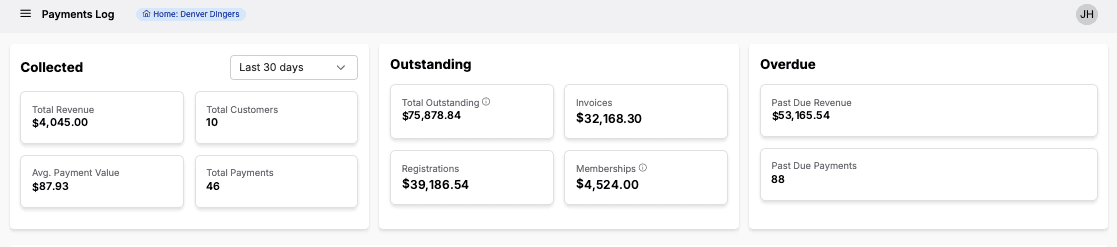
The three stat panels at the top of the page give you an at-a-glance picture of your organization's financial health.
Collected: Total revenue collected, Total customers, Avg. payment value & Total payments
Outstanding: Total outstanding (all types), Invoices outstanding, Registrations outstanding, Memberships outstanding
Overdue: Past due revenue ($) & Past due payment count
The Collected panel defaults to the last 30 days. Use the date filter to adjust the window. Outstanding and Overdue figures reflect all time.
History vs. Scheduled tabs
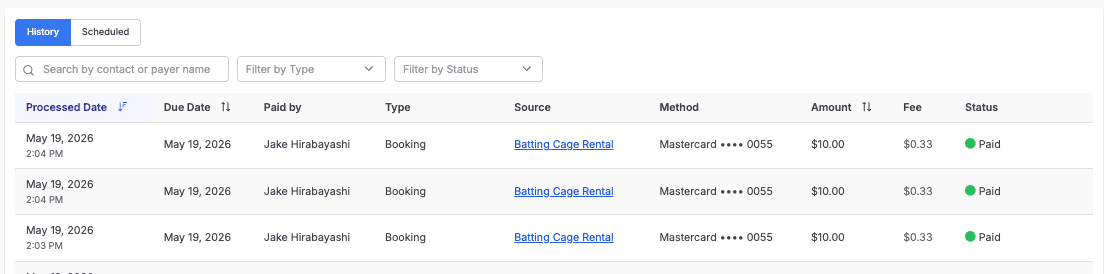
History shows all transactions that have been processed — paid, failed, refunded, or past due.
Scheduled shows all upcoming payments that are queued to be collected on a future date.
Searching and filtering
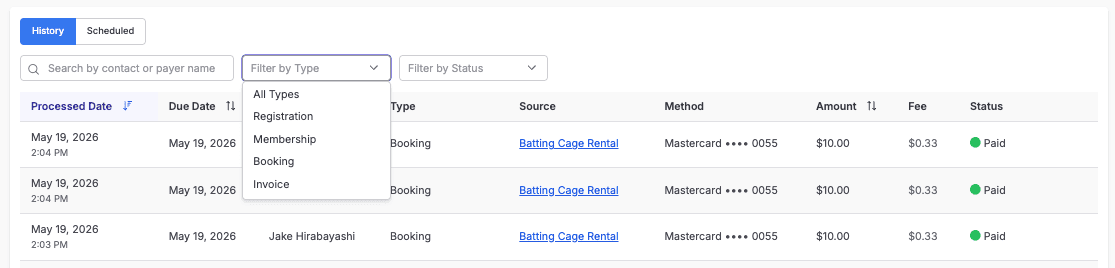
Use the search bar to find transactions by customer name. Use the filter dropdowns to narrow by:
Type — Registration, Membership, Booking, Invoice
Status — Paid, Failed, Refunded, Past Due (History tab) · Scheduled, Canceled (Scheduled tab)
Every transaction in the log links back to its source — click the source name to open the full context for what that customer paid for.
Transaction statuses
Status | What it means | Actions to take |
|---|---|---|
Paid | Payment collected successfully | Refund |
Past Due | Payment was due but not collected — card may have failed or expired | Charge Now, Update Method, Re-send invoice |
Failed | Payment attempt was made but declined | Charge Now, Update Method |
Refunded | Payment was returned to the customer | |
Scheduled | Payment is queued for a future date | Charge Now, Update Method, Change Payment Date |
Canceled | Scheduled payment was canceled before processing |
Taking action on payments
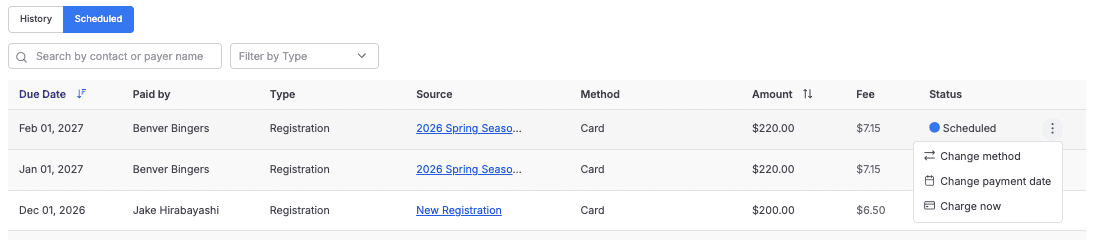
Click the ⋯ menu on any transaction to take action. Available options differ by tab.
History tab — Failed or Past Due transactions
Change method
Swap to a different card the customer has on file, or add a new payment method on their behalf.
Charge now
Immediately retry the payment using the current method on file.
Scheduled tab — upcoming transactions
Change method
Update the card that will be charged when this payment runs.
Change payment date
Reschedule when this payment will be collected. See below for options.
Charge now
Collect the payment immediately rather than waiting for the scheduled date.
Changing a payment date
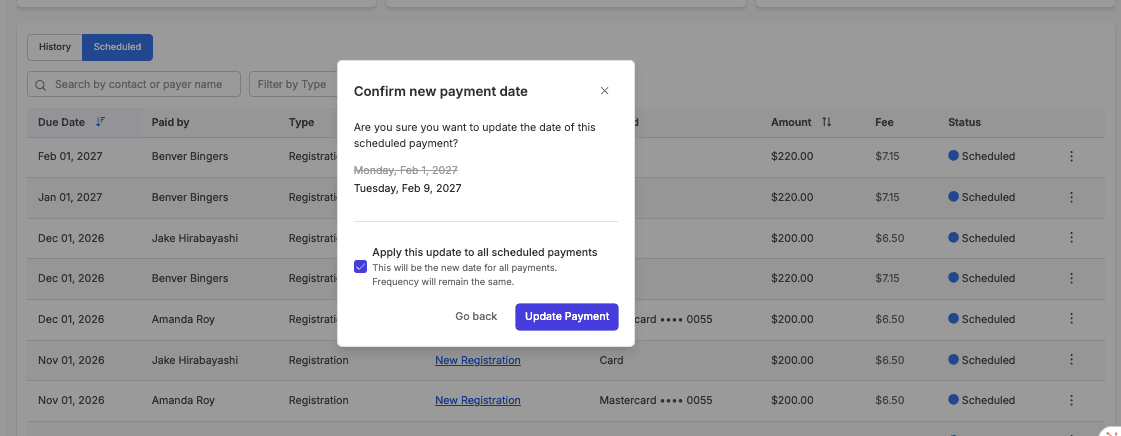
When you select Change payment date on a scheduled transaction, you'll choose a new date and then decide how broadly to apply it:
Apply to this payment only — moves just this one installment, leaving all other scheduled payments on their original dates
Apply to all scheduled payments — updates the entire payment cadence going forward to the new date. Frequency remains the same.
Selecting Apply to all scheduled payments will shift every remaining installment to the new date. Eg) Moving 1st of each month to the 5th of each month. Double-check before confirming if the customer has a specific billing arrangement.
Additional Resources:
Setting up your first Registration
Resources By Role: