Booking: Deep Dive
The Bookings module is TFA's built-in scheduling system. It allows your organization to sell time (lessons, classes, clinics) and space (facility rentals) — all through your portal and mobile app. This article covers admin setup and the customer-facing booking experience.

The Bookings module is TFA's built-in scheduling system. It allows your organization to sell time (lessons, classes, clinics) and space (facility rentals) — all through your portal and mobile app. This article covers admin setup and the customer-facing booking experience.
Core concepts
The bookings system is built around three interconnected building blocks. Setting these up correctly determines what customers can book, when, and where.
Services
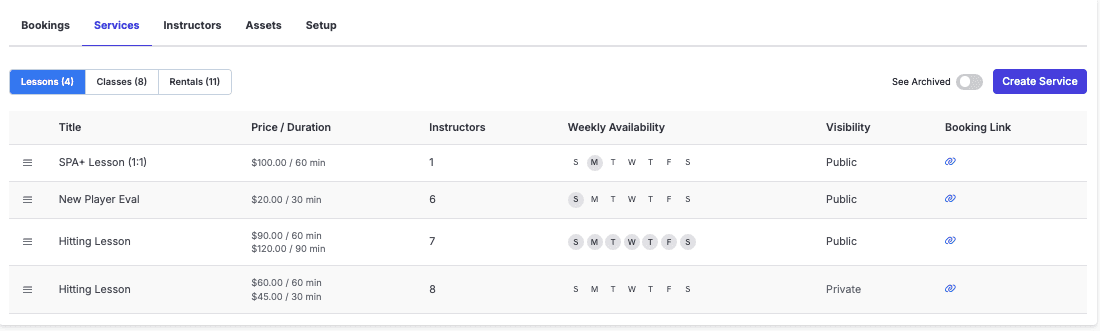
What you're offering — a hitting lesson, pitching clinic, group class, or cage rental. Each service has its own rates, duration, scheduling mode, visibility, and availability. Organized into Lessons, Classes, and Rentals tabs.
Instructors
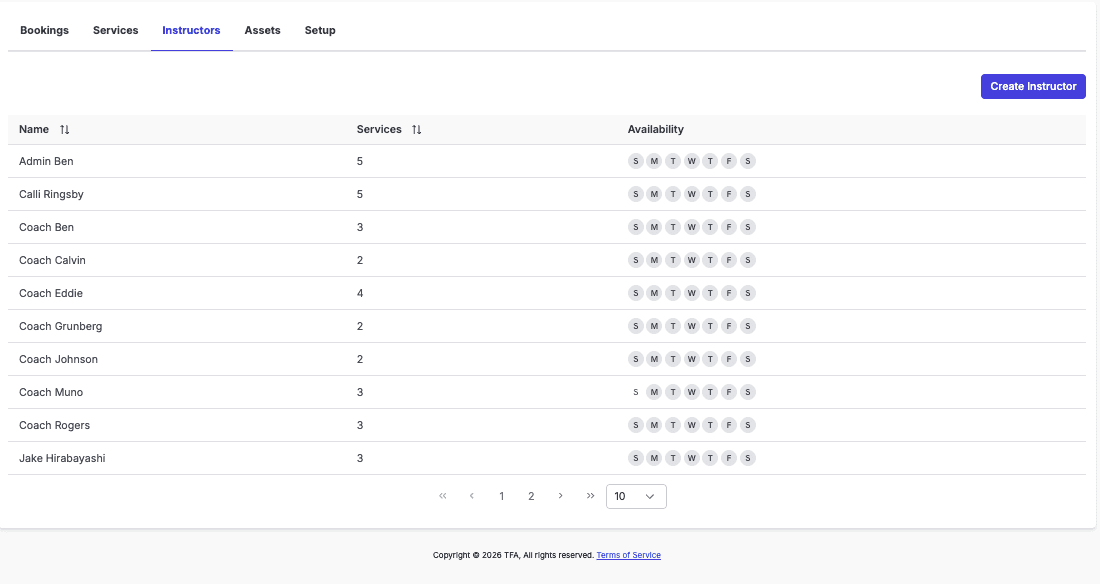
The coaches or staff who deliver services. Each instructor has their own availability and is linked to the specific services they offer.
Assets
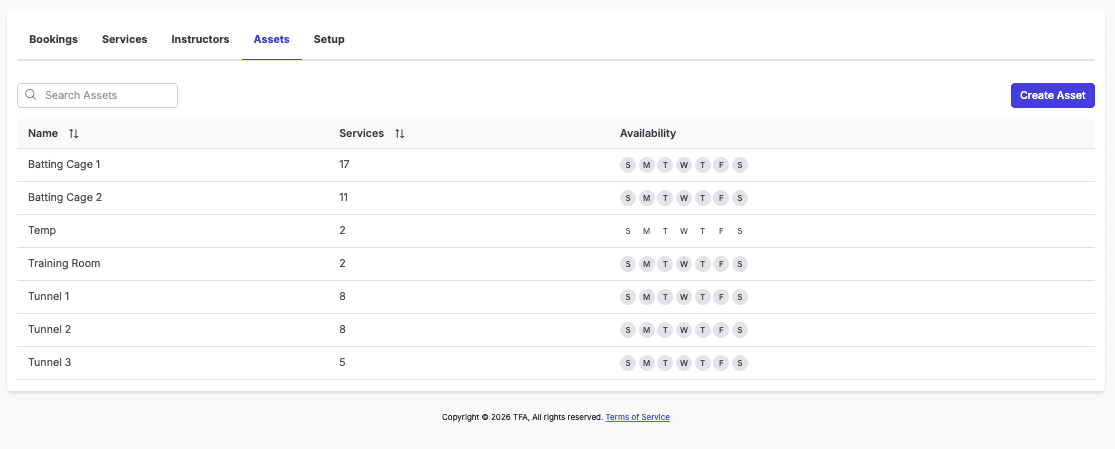
Physical spaces within your facility — batting cages, tunnels, turf areas. Assets are linked to services and have their own availability to prevent double-booking.
When a customer books, TFA automatically syncs service availability, instructor availability, and asset availability. A time slot only appears if all three are simultaneously free.
Step 1 — Configure Setup
Before creating services, go to Offerings → Bookings → Setup to configure your global booking settings.
Setting | What it does |
|---|---|
Facility Address | Your facility's address, displayed in confirmation emails and booking details. On mobile, this deep-links to maps so customers and coaches get one-tap directions. |
Booking Deadline | Minimum notice required before a booking. Prevents last-minute bookings (e.g. no bookings within 2 hours of start time). Defaults to None. |
Refund Deadline | Minimum time before a booking that a customer can cancel and receive an automatic refund. Cancellations after this window will not be automatically refunded. Defaults to 12 hours. |
Documents | Upload waivers or agreements (PDF, .doc, .docx) that customers must review and agree to when booking any service. |
Step 2 — Create services
Go to Services and click Create Service. Services are organized into three tabs: Lessons, Classes, and Rentals.
Field | What it does |
|---|---|
Title & description | Public-facing name and details visible to customers on your portal |
Group service | Toggle on for classes, clinics, or any service with multiple participants. Leave off for 1-on-1 lessons. |
Rates | Set duration(s) and price(s). Open Booking supports multiple durations and rates; Fixed Slots is limited to one duration. |
Scheduling mode | Open Booking or Fixed Slots — see below |
Availability | Weekly schedule for when this service can be booked (e.g. Mon–Fri, 12pm–5pm) |
Instructors & assets | Link which instructors offer this service and which assets it uses |
Visibility | Public (visible on portal) or Private (direct link only) — see below |
Booking link | Every service has a unique shareable link for direct access |
Scheduling modes
Scheduling Mode | What it does |
|---|---|
Open Booking | Customers choose any available time within your defined availability window. Best for 1-on-1 lessons where flexibility matters. Supports multiple durations and rates. |
Fixed Slots | You define exact start times (e.g. 1:00pm, 2:00pm, 3:00pm). Customers choose from those slots only. Ideal for group classes, clinics, and structured programs. Limited to one duration per service. |
Public vs. Private visibility
Visibility | What it does |
|---|---|
Public | Visible on your portal. Any customer with your portal link can find and book the service. |
Private | Not visible on your portal. Access requires a direct link. Use for team-only rentals, invite-only sessions, or services you want to self-manage as an admin. |
Step 3 — Set up instructors
Go to Instructors and add each coach or staff member
Select which services that instructor offers — this links them bidirectionally so they appear as an option when customers book that service
Set the instructor's weekly availability — both service and instructor availability must be open for a slot to appear to customers
Step 4 — Set up assets
Go to Assets and create an entry for each bookable space (e.g. Batting Cage 1, Tunnel 2, Turf Area)
Link the services that can take place in that space
Set the asset's weekly availability — useful when specific spaces have different hours from each other
Controlling asset assignment: TFA assigns assets automatically at booking time. To ensure a specific service always uses a specific space, link only one asset to that service. For example, linking only Tunnel 2 to Pitching Lessons means all pitching lesson bookings will always use Tunnel 2.
The bookings calendar
The main Bookings tab gives you two calendar views. Toggle between them using the Week and Assets buttons at the top left.
Week view
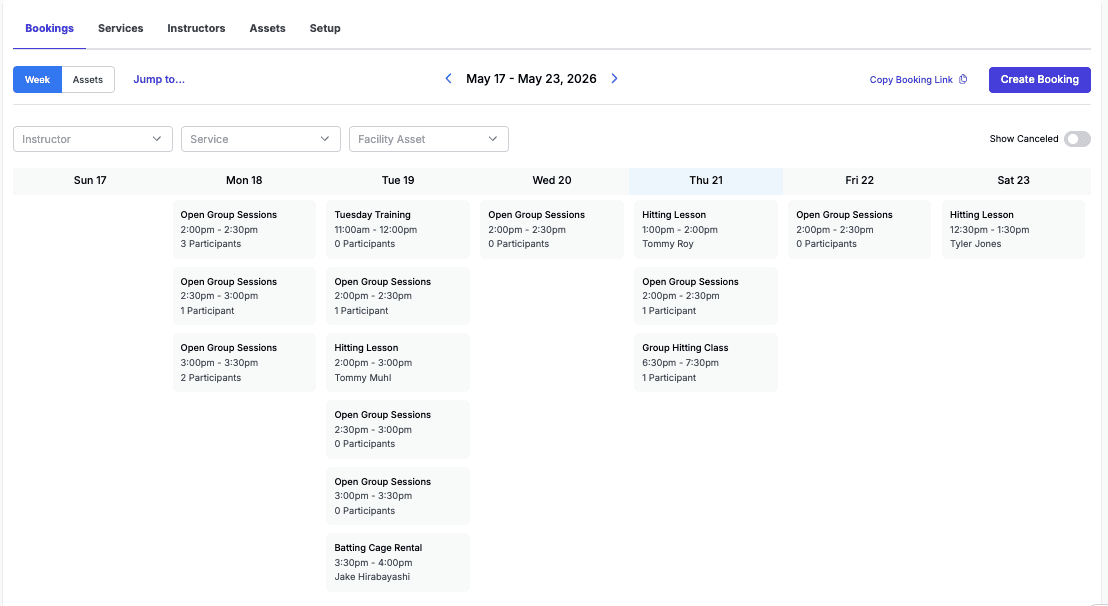
7-day view showing all bookings across all instructors and services. Filter by Instructor, Service, or Facility Asset. Shows participant count, instructor name, and time for each booking. Toggle to show canceled bookings.
Assets view (day view)
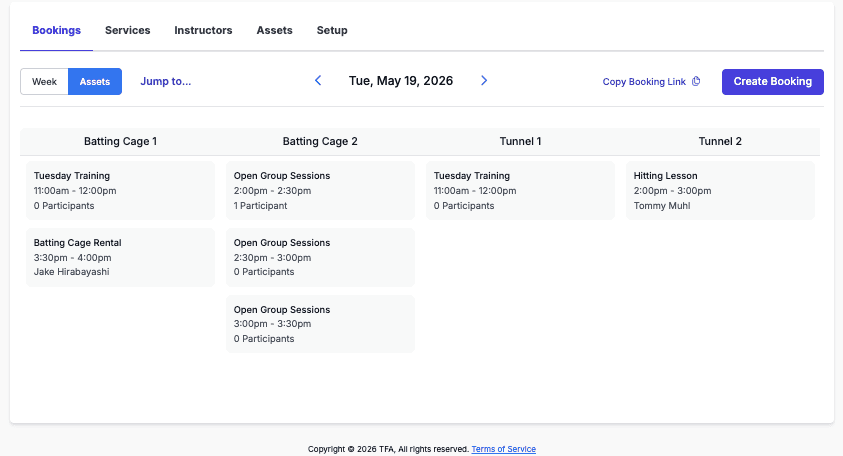
Single-day view with one column per asset. Shows exactly what's happening in each space throughout the day. Ideal for facility managers monitoring space utilization in real time.
Click any booking to open its detail — instructor, date/time, asset, rate, and participant list. From the detail you can manage participants, cancel individual registrations (group sessions), cancel the entire booking, or issue a refund.
Creating a booking as an admin
Admins can create bookings on behalf of customers directly from the calendar. Click Create Booking in the top-right corner and fill in:
Service and duration — select the service first; instructor and asset options populate based on your selection
Instructor and Asset
Date and start time
Participant — select any user in the system
Billing contact and payment method — you can reference any payment method the customer has on file, or set up a recurring booking on their behalf
You can also copy a direct booking link from the calendar using Copy Booking Link — useful for sending customers directly to the booking flow without them having to navigate the portal.
Parents & Players
How to book a service
You can book via your club's portal (web) or through the TFA mobile app. The flow is the same on both.
Select the service type from the portal home screen or mobile Schedule tab
Choose an instructor — each shows their rate and a short bio
Pick a date and time from available slots
Finish & Pay — select who you're booking for, apply any package credits or membership benefits, choose a payment method, and confirm
After booking, a confirmation email is sent to you, the participant, and the instructor. The confirmation includes service details, the assigned facility location (deep-linked to maps on mobile for one-tap directions), and links to reschedule or cancel.
Rescheduling
Click manage your booking in your confirmation email and select Reschedule. The service and instructor are locked — you can only change the date and time. Select a new available slot and confirm.
Rescheduling may not be available if you're within the club's reschedule deadline window. If unavailable, contact your club directly.
Canceling a booking
Cancel from your confirmation email or directly from the mobile app.
From the mobile app
Go to the Schedule tab and tap the booking you want to cancel
Tap Cancel booking — review the cancellation policy summary before proceeding
Confirm — the booking immediately shows as canceled and notifications are sent
Within refund window
A refund will be issued automatically. Confirm to proceed.
Outside refund window
No refund will be issued. You can still cancel but won't receive your money back.
Cancellation blocked
The cutoff has passed. Contact your club directly to discuss options.
Frequently asked questions
Can I book a facility space without an instructor?
Yes — if your club offers rentals, you'll see a Rentals option on the portal home screen. This lets you reserve a space (e.g. batting cage) for independent use without a scheduled instructor.
Can I use package credits when booking?
Yes — if you have an active package or membership with benefits, select it from the Apply discount or credit dropdown at checkout. The discount applies automatically. If credits cover the full amount, no payment method is needed.
Which asset or space will I be assigned to?
Asset assignment is automatic — TFA selects an available space based on your booking. The assigned location will appear in your confirmation email and is deep-linked to maps on mobile for one-tap directions. Your club controls which spaces are available for each service.
Can I set up a recurring weekly session?
Yes — after selecting a time slot, tap Book weekly at [time] to automatically book that same slot every week. You can also add multiple individual slots in a single checkout using Add another time.
Additional Resources:
Setting up your first Registration
Understanding The Payments Log
Resources By Role: